In this article, you will learn how to use the Kanban Board. Access the Superflow Dashboard by going to app.usesuperflow.com. Alternatively, when you are in Review Mode, you can use the method below:
1

Find the Superflow Toolbar and click the More Options icon
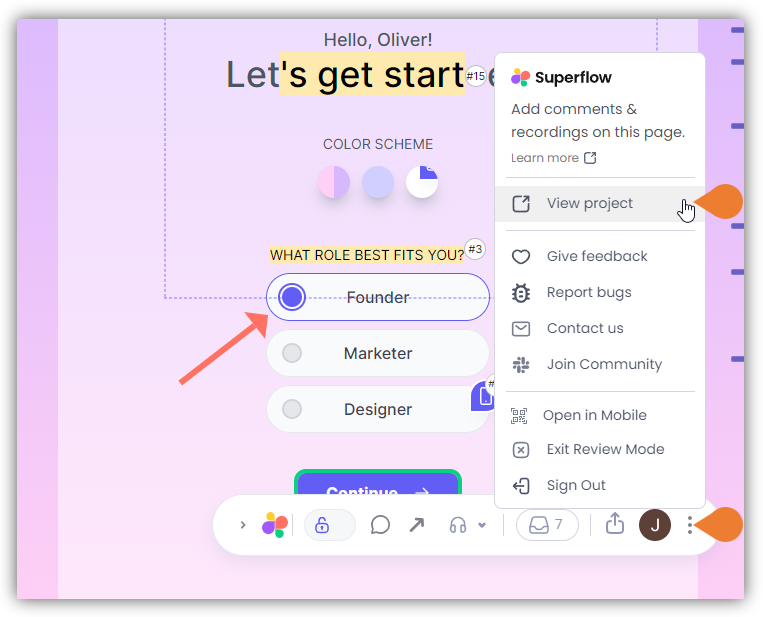
Find the Superflow Toolbar and click the More Options icon
2

A sub-menu will expand, click the View Project option to select

3

A new tab will direct you to the Project Dashboard page

By default, you will be directed to the Dashboard for Comment Status screen when accessing the Project Dashboard.
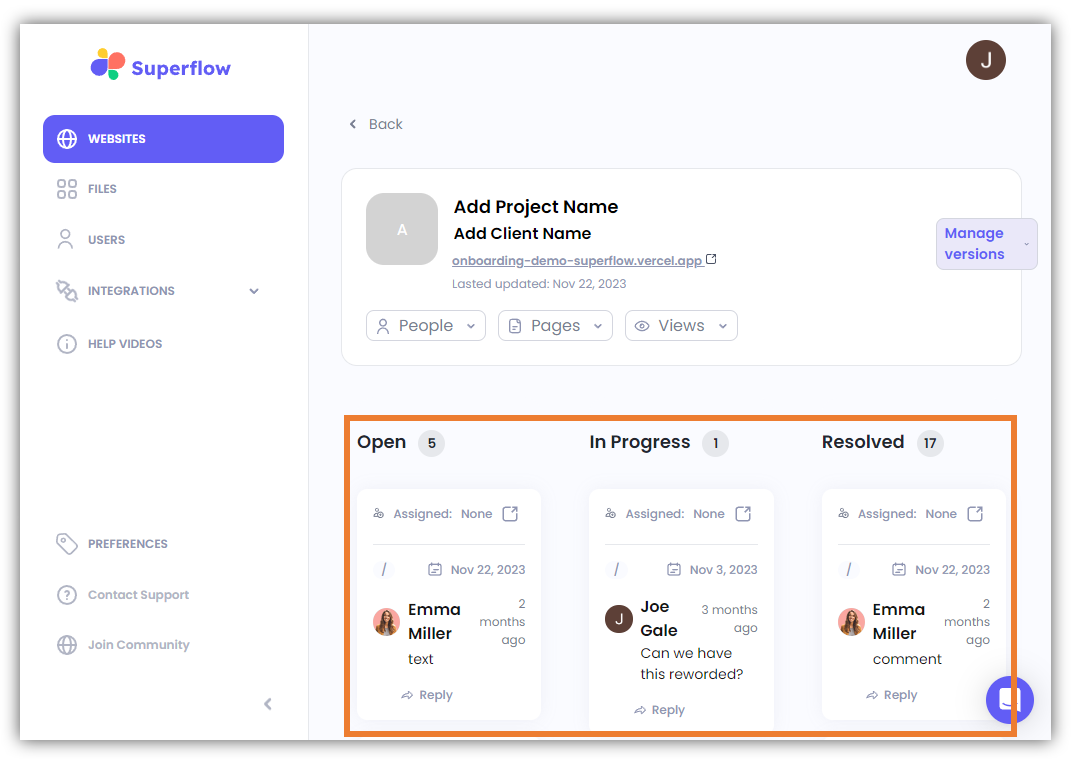
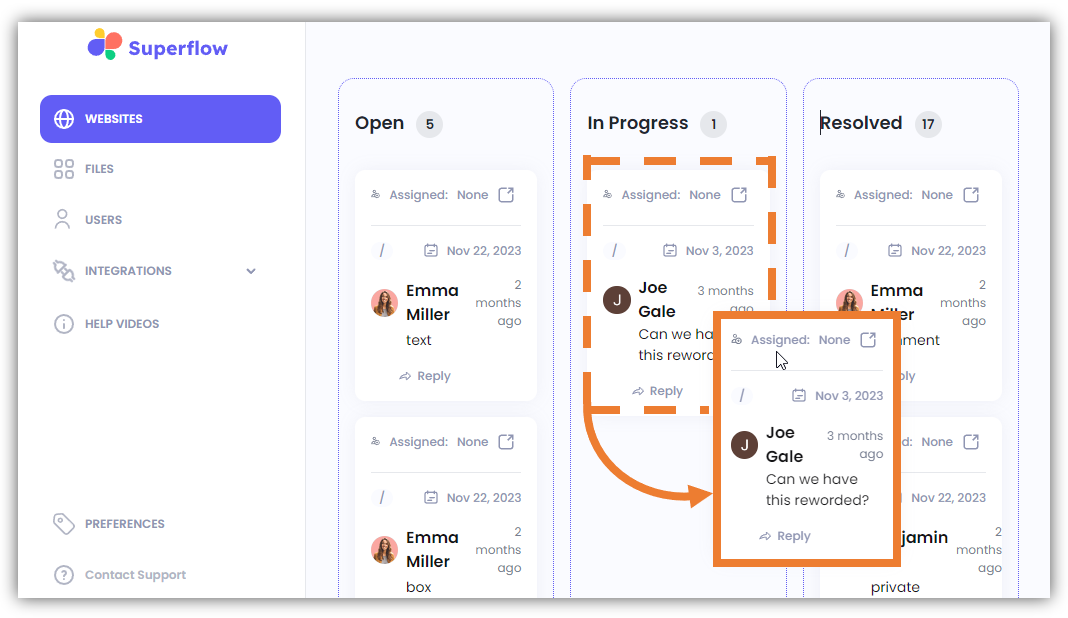
Three (3) columns display the comment statuses namely; (a) Open, (b) In Progress, and (c) Resolved.
A new tab will direct you to the Project Dashboard page
Individual boxes represent a comment from your project which is categorized by its status. You can move these boxes to the appropriate Column (e.g. Open, In Progress, Resolved) by Dragging and Dropping them to the target column.
You can move these boxes to the appropriate Column (e.g. Open, In Progress, Resolved) by Dragging…
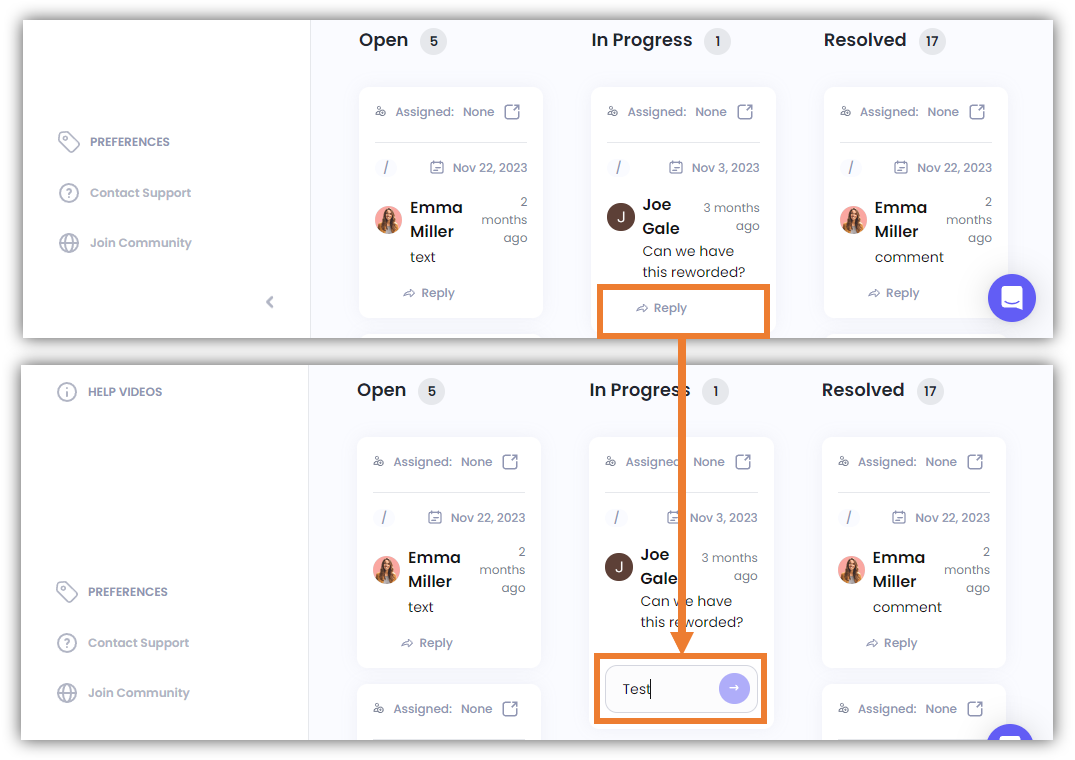
To reply to a comment within the board, click the Reply button inside its box.
To reply to a comment within the board, click the Reply button inside its box
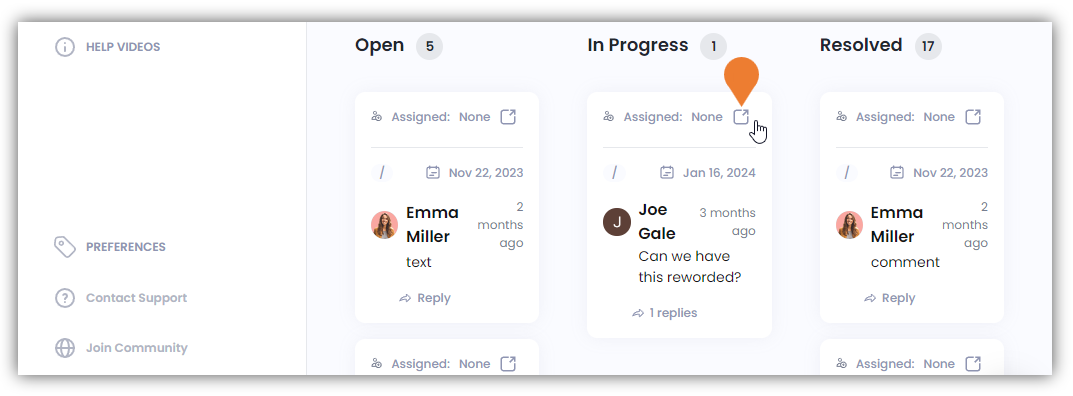
You can also go to the project’s actual comment by clicking the Go to Comment icon which will open a new tab that directs you to the project where the comment was added.
You can also go to the project’s actual comment by clicking the Go to Comment icon which will open…