1
Find the Superflow Toolbar and click the More Options icon

2
A sub-menu will expand, click the View Project option to select
3
A new tab will direct you to the Project Dashboard page
By default, you will be directed to the Dashboard for Comment Status screen when accessing the Project Dashboard.
4
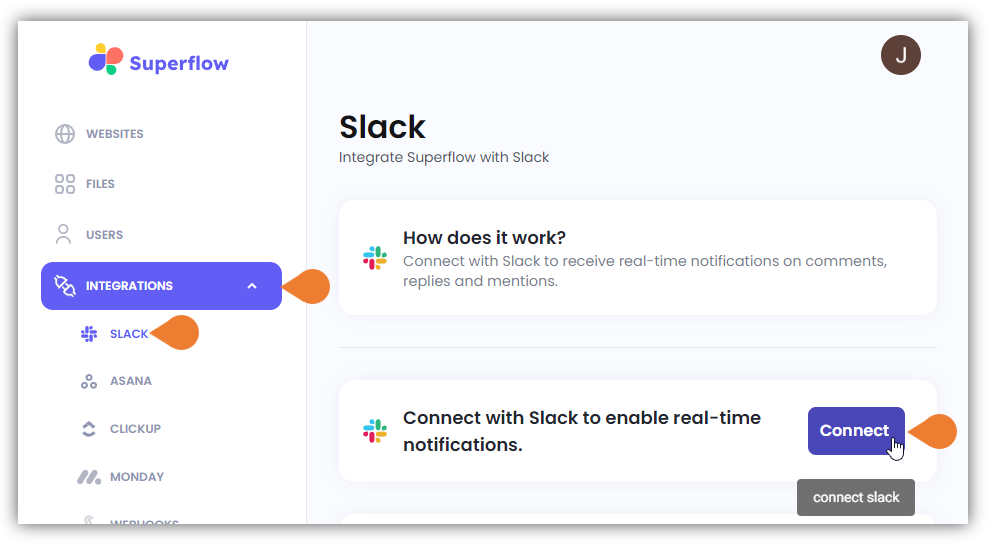
Click the INTEGRATIONS module to access more integration options
5
Select SLACK to access Slack’s integration page and click Connect to start the integration
6
You will be directed to Slack’s integration page
In the Workspace field, enter the workspace’s URL and click Continue.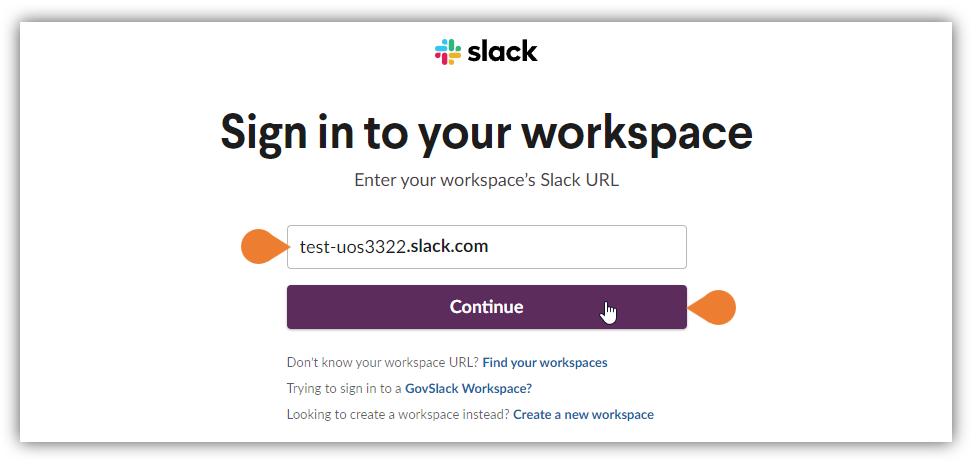
7
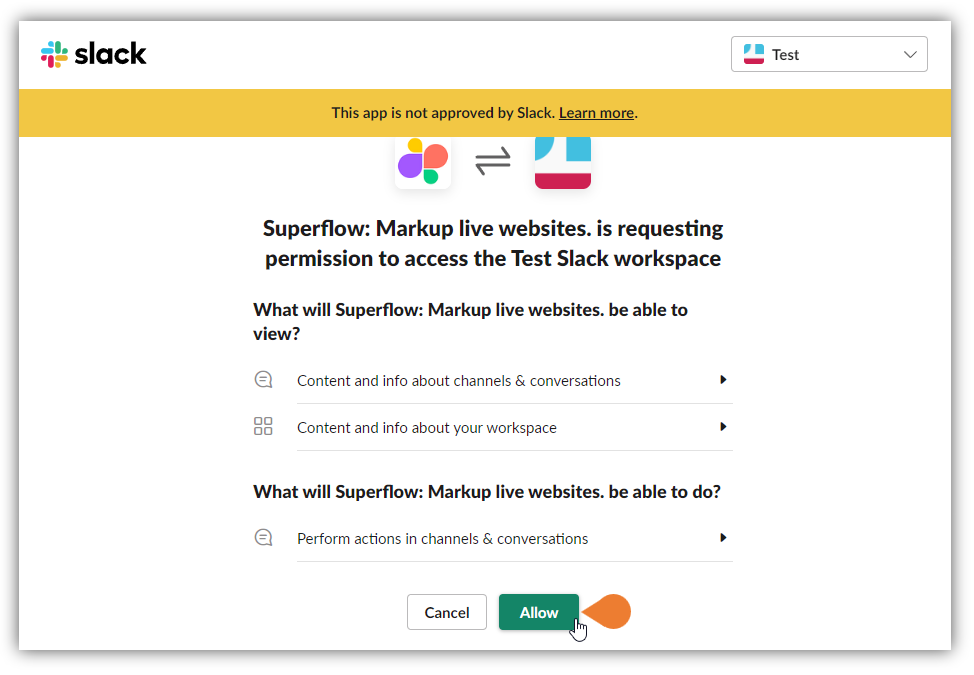
You will be directed to the confirmation page…
You will be directed to the confirmation page, click Allow to allow Superflow to access the specified workspace.