1
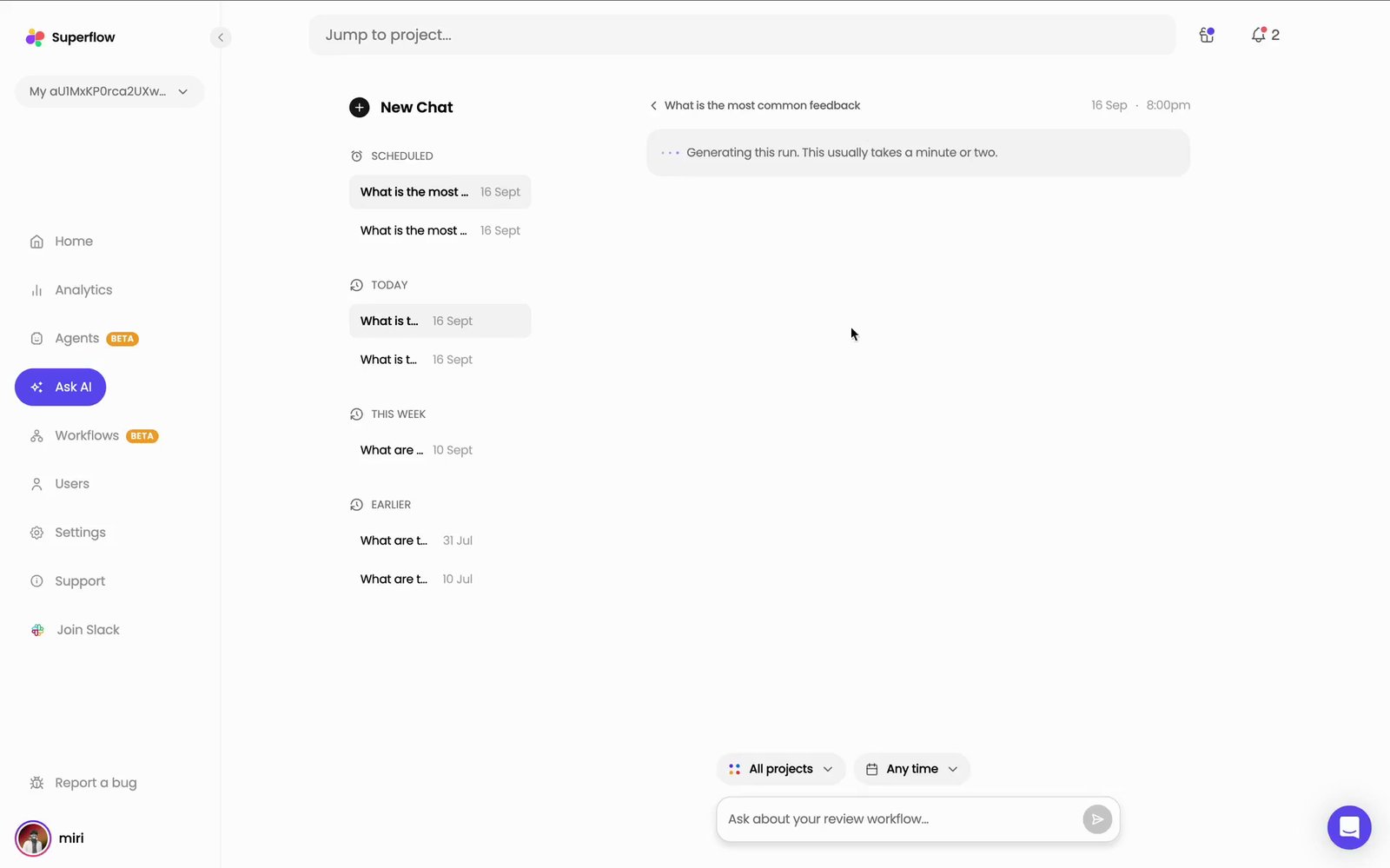
At the end of any answer, click Make this a weekly report
Superflow creates a scheduled report from the question you asked, and confirms when the first run will happen.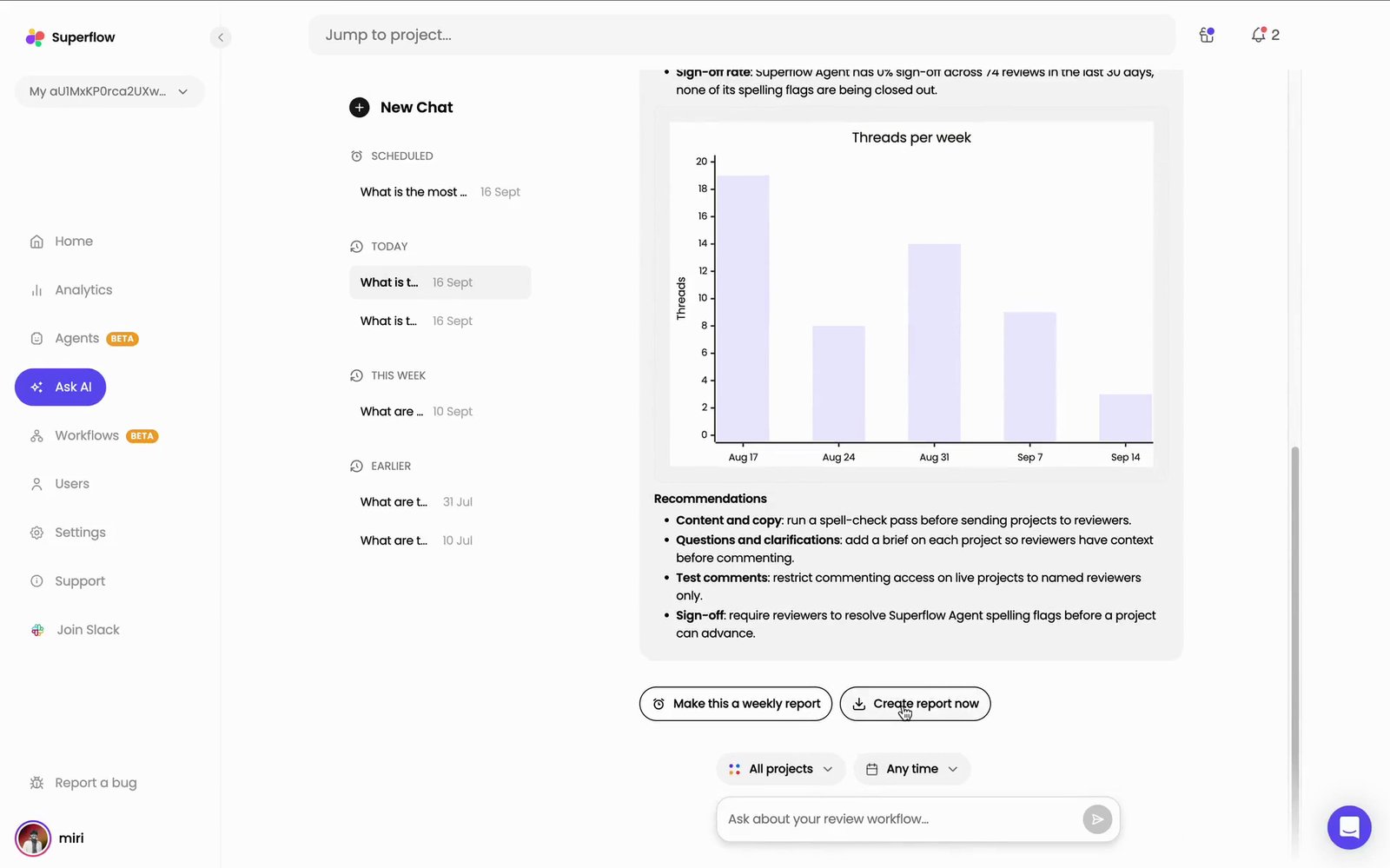
2
The report's settings page opens, named after your question
Everything about the schedule is set from this one page.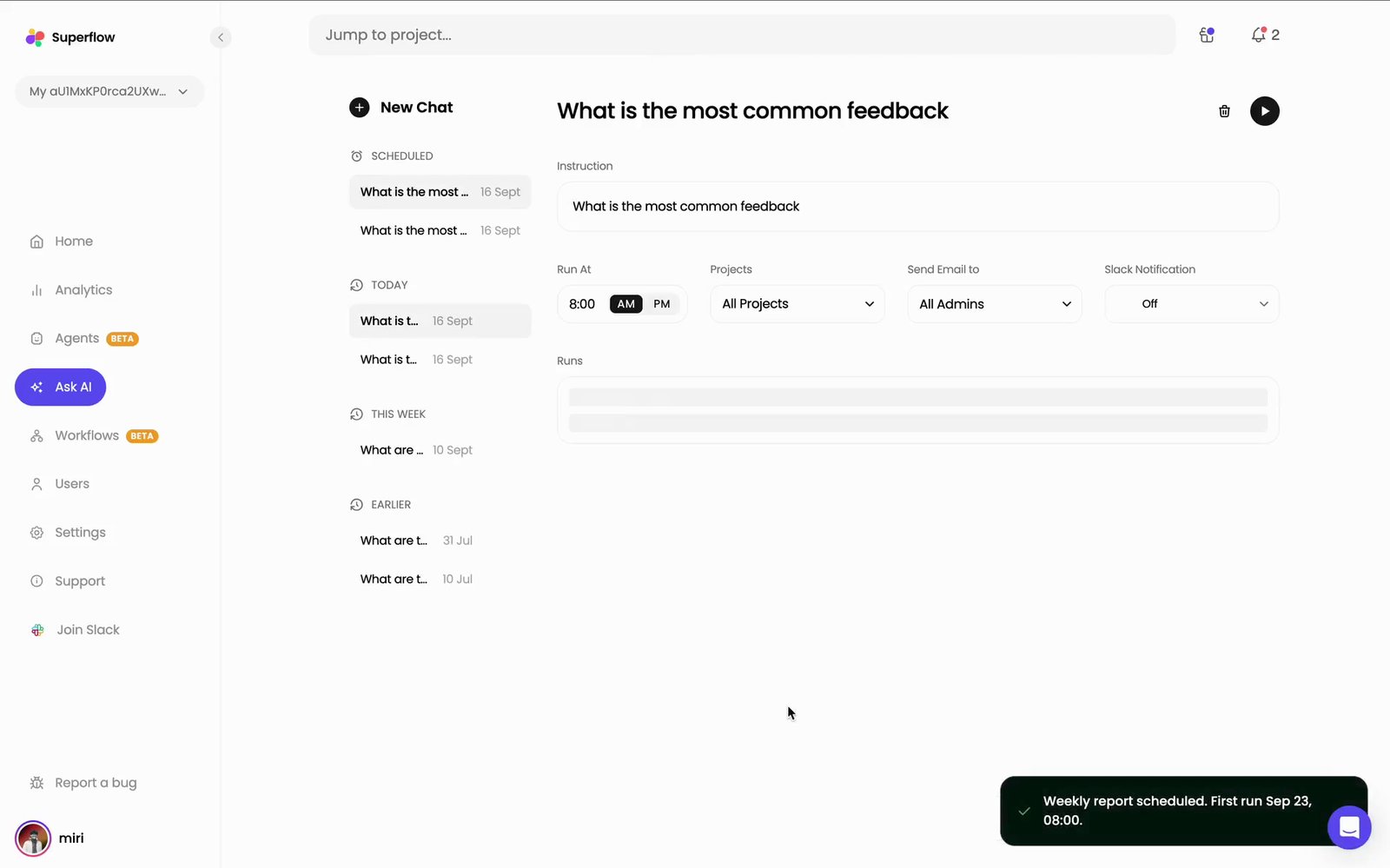
Sending to Slack requires the Slack integration to be connected first — see How to Integrate with Slack.
3
Open Projects to choose which projects the report covers
Search for a project by name, or tick the ones you want. The counter above the list shows how many you have selected, and the field keeps reading All Projects until you select individual ones.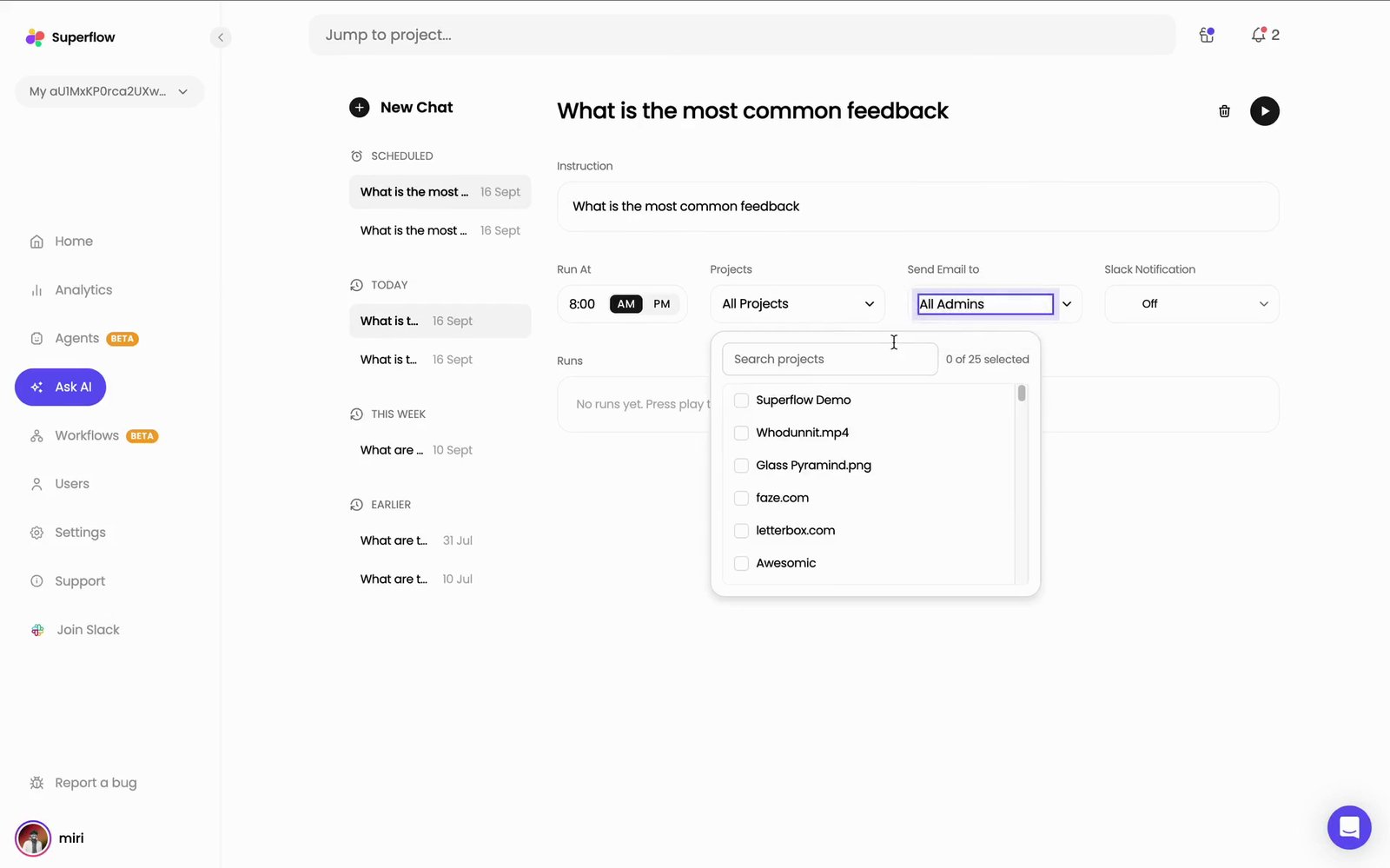
4
Open Send Email to and choose who receives it
Choose All Admins to send the report to every admin on the workspace, or Only Me to keep it to yourself.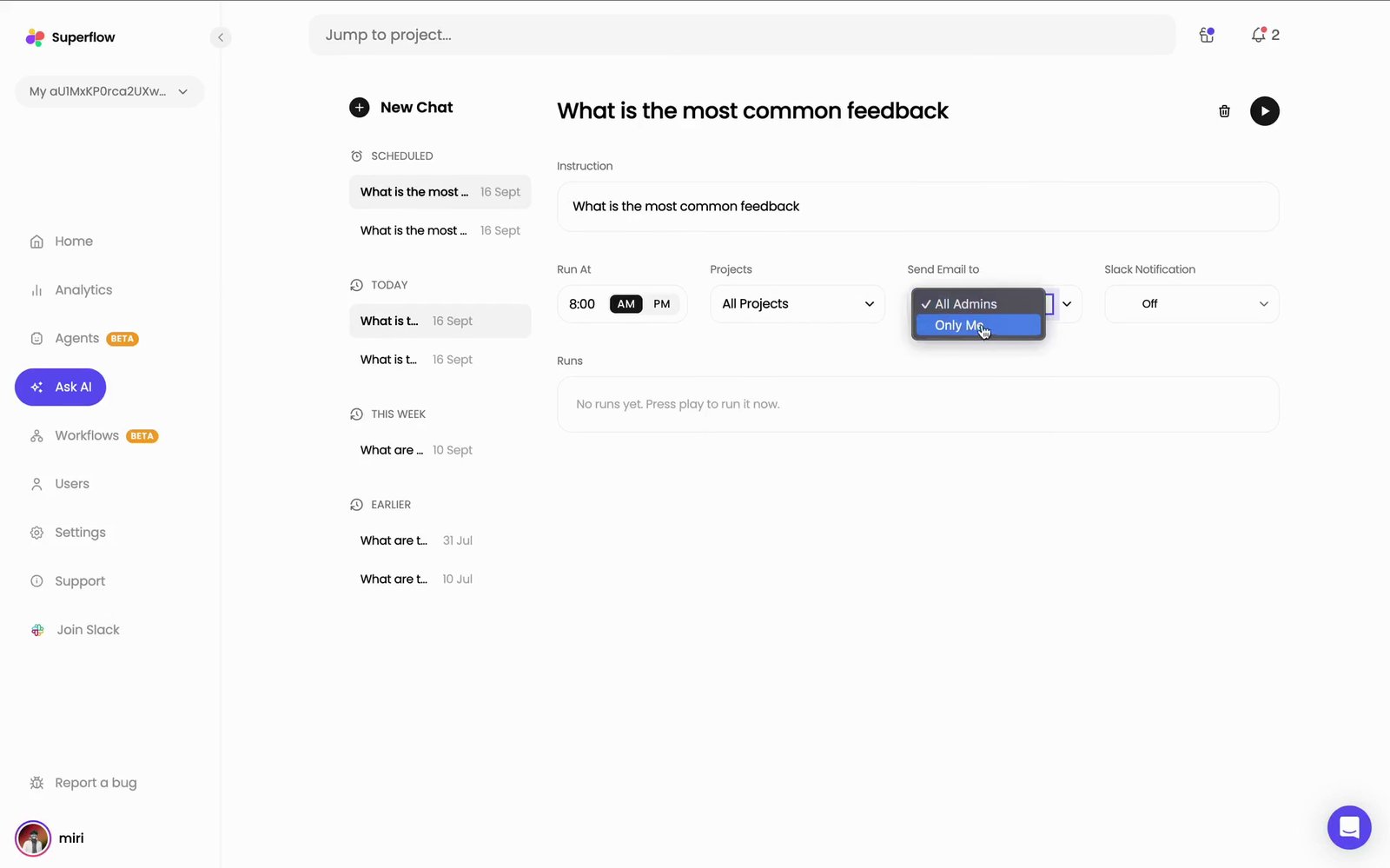
5
Click the Play button to run it now, without waiting for the schedule
Every run is listed under Runs at the bottom of the page. A run takes a minute or two to generate; click it to open the finished report.