> ## Documentation Index
> Fetch the complete documentation index at: https://usesuperflow.ai/docs/llms.txt
> Use this file to discover all available pages before exploring further.
# How to sign in to the superflow toolbar
## How to Sign In to the Superflow Toolbar
In this article, you will learn how to sign in to your Superflow Toolbar. Signing in to your Superflow account allows you to access your previous work, view, and interact with the comment threads.
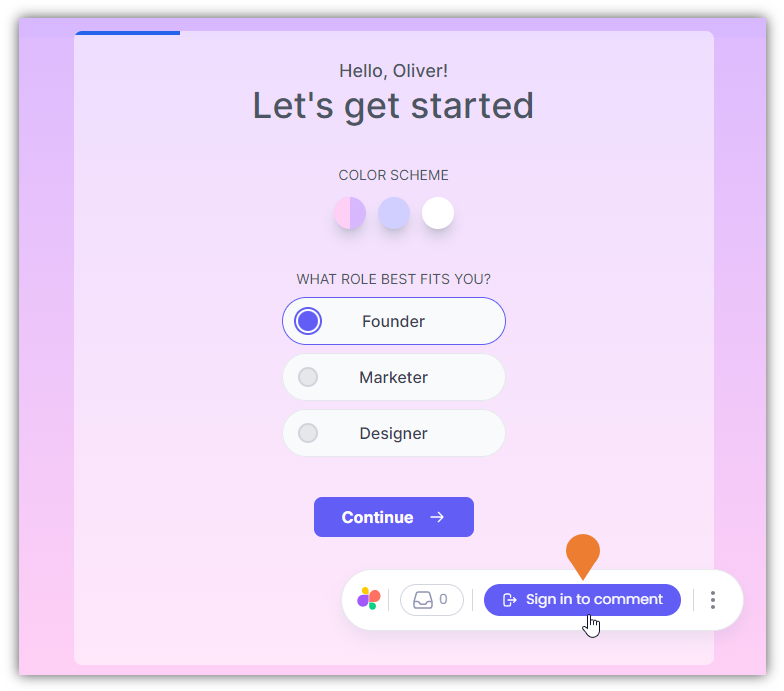
1. On the Demo Site, find the **Superflow Toolbar** and click the **Sign in to comment** button.
 2. You will be directed to the Superflow login page. There are three (3) methods to login to your account, choose from the following method:
* Sign in with Google
* Sign in with Microsoft
* Work Email
3. In this example, we will be using the **Sign in with Google** option.
2. You will be directed to the Superflow login page. There are three (3) methods to login to your account, choose from the following method:
* Sign in with Google
* Sign in with Microsoft
* Work Email
3. In this example, we will be using the **Sign in with Google** option.
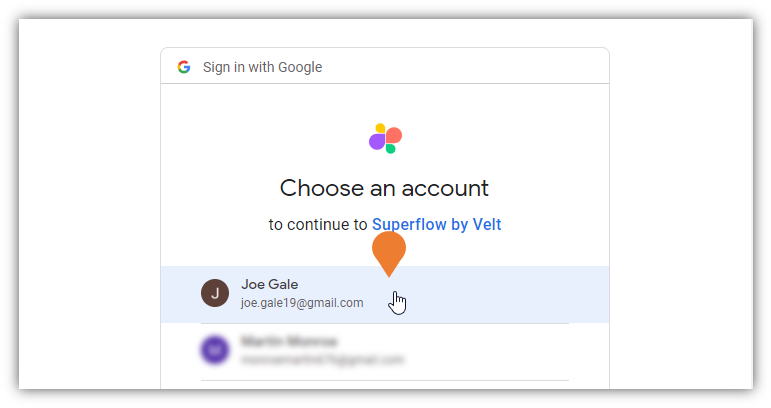 4. The Email selection panel will appear. Click the email that you want to use to sign in to your Superflow account.
 ## Related topics
- [How to expand the superflow toolbar](/docs/how-to-guides/how-to-expand-the-superflow-toolbar.md)
- [How to integrate with clickup](/docs/Integrations/how-to-integrate-with-clickup.md)
- [How to integrate with Vercel](/docs/Integrations/how-to-integrate-with-vercel.md)
- [How to integrate with Asana](/docs/Integrations/how-to-integrate-with-asana.md)
- [How to use guest mode](/docs/how-to-guides/how-to-use-guest-mode.md)
## Related topics
- [How to expand the superflow toolbar](/docs/how-to-guides/how-to-expand-the-superflow-toolbar.md)
- [How to integrate with clickup](/docs/Integrations/how-to-integrate-with-clickup.md)
- [How to integrate with Vercel](/docs/Integrations/how-to-integrate-with-vercel.md)
- [How to integrate with Asana](/docs/Integrations/how-to-integrate-with-asana.md)
- [How to use guest mode](/docs/how-to-guides/how-to-use-guest-mode.md)