> ## Documentation Index
> Fetch the complete documentation index at: https://usesuperflow.ai/docs/llms.txt
> Use this file to discover all available pages before exploring further.
# How to Use Your Workspace Agent
> Learn how to find the Workspace Agent Superflow generates from your own review history, give it your brand guidelines, and run it against a project.
In this article, you will learn how to find the **Workspace Agent** Superflow generates for you, review the checks it has derived from your own review history, give it your brand guidelines, and run it against a project.
Agents are currently in **Beta**. Each run consumes credits from your workspace balance, and the exact cost is shown before you confirm the run.
Your Workspace Agent sits at the top of the **All Agents** list, marked **(Auto Generated)** — you do not create it. Click its name to open it.
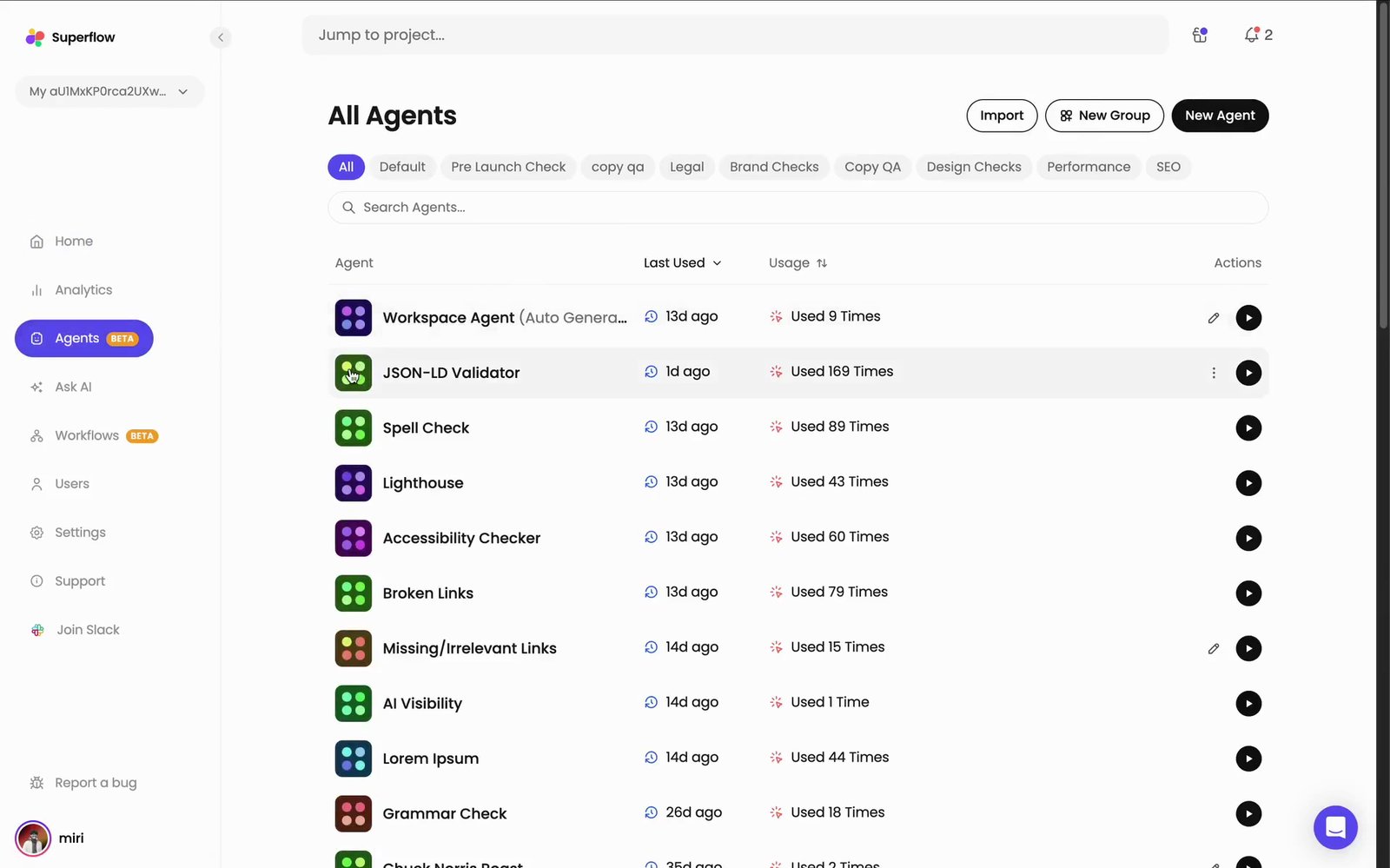 It behaves like any other agent from here on. It can be searched for, filtered by group, and run from the **Play** icon on its row.
Each row is one check, written out in full, drawn from the feedback you and your clients have been leaving on projects.
| Column | What it shows |
| --------------- | -------------------------------------------------------------------------------------------------------------------------------------------------------------------------------------------- |
| **Tests** | The check itself, in plain English. |
| **Group** | The category it belongs to, such as `visual-design`, `layout`, or `technical details`. |
| **Utilization** | How consistently this check already appears in your review history — the share of reviews that enforced it, and how many reviews that is based on. A dash means there is no data for it yet. |
| **Created by** | Where the check came from. |
It behaves like any other agent from here on. It can be searched for, filtered by group, and run from the **Play** icon on its row.
Each row is one check, written out in full, drawn from the feedback you and your clients have been leaving on projects.
| Column | What it shows |
| --------------- | -------------------------------------------------------------------------------------------------------------------------------------------------------------------------------------------- |
| **Tests** | The check itself, in plain English. |
| **Group** | The category it belongs to, such as `visual-design`, `layout`, or `technical details`. |
| **Utilization** | How consistently this check already appears in your review history — the share of reviews that enforced it, and how many reviews that is based on. A dash means there is no data for it yet. |
| **Created by** | Where the check came from. |
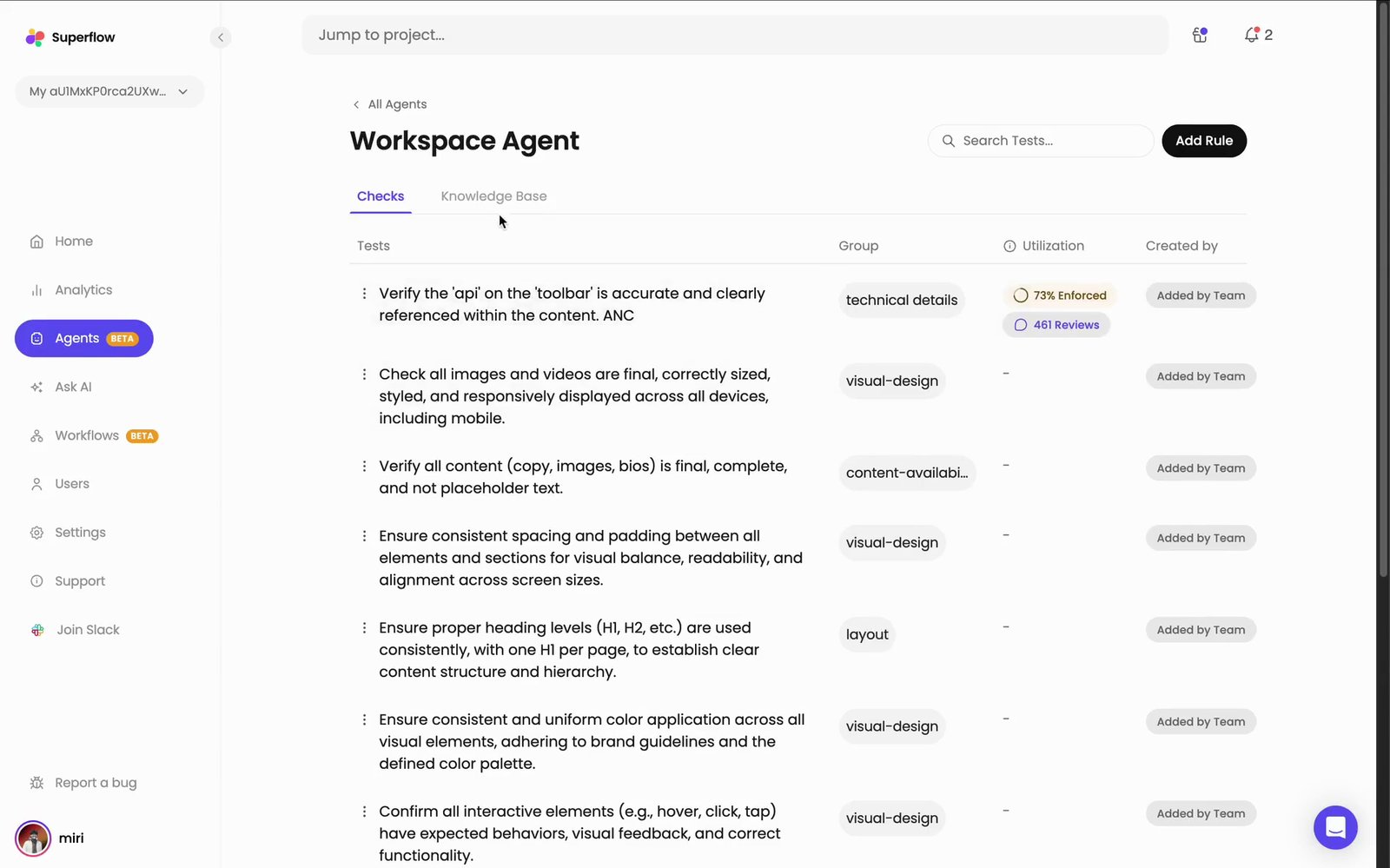 Use **Search Tests…** to find a check quickly, and **Add Rule** to add one of your own alongside the derived ones.
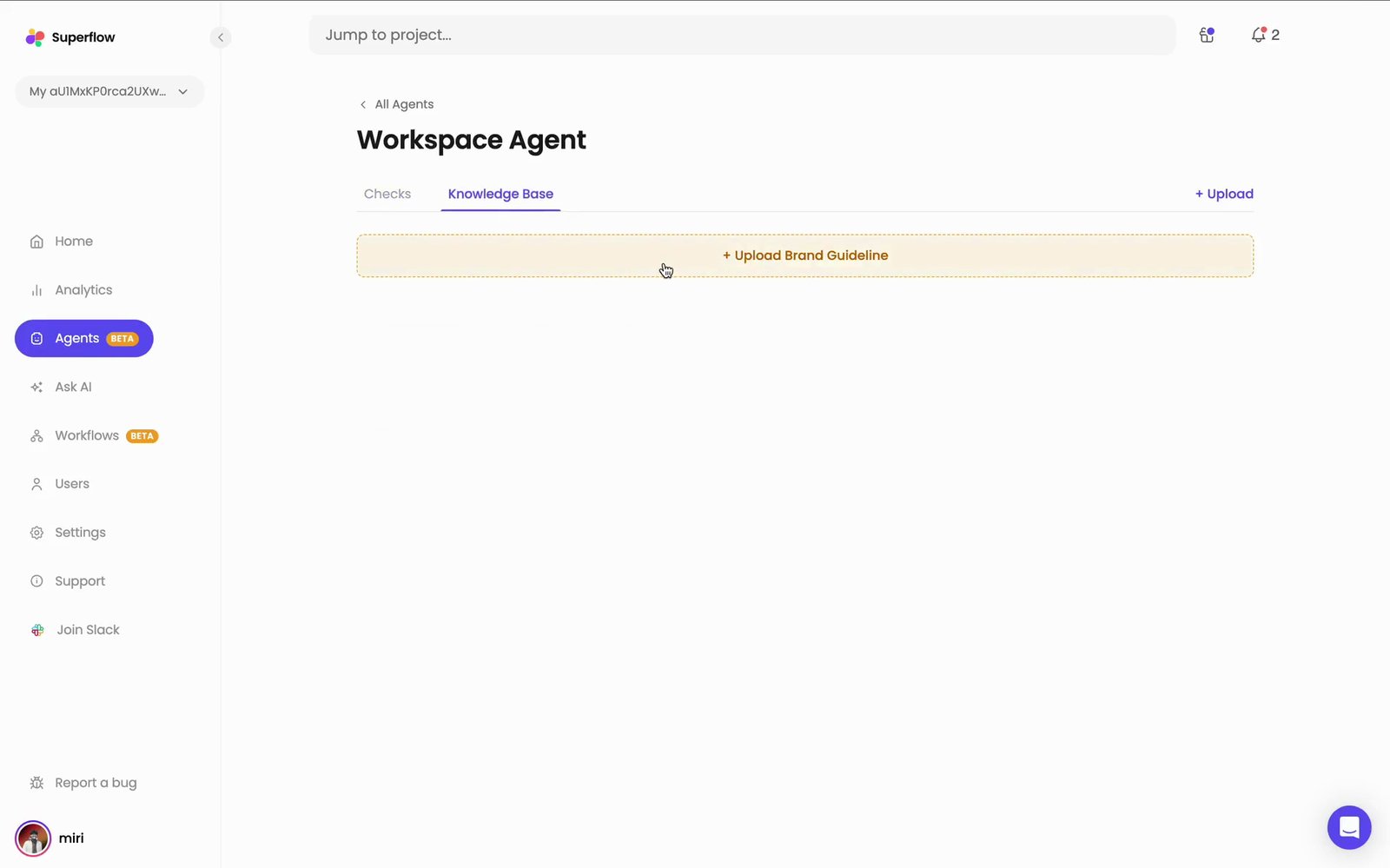
Click **Upload Brand Guideline** — or **+ Upload** on the right — to give the agent the document it should check work against. The same guidelines then apply to every project you point the agent at.
Use **Search Tests…** to find a check quickly, and **Add Rule** to add one of your own alongside the derived ones.
Click **Upload Brand Guideline** — or **+ Upload** on the right — to give the agent the document it should check work against. The same guidelines then apply to every project you point the agent at.
 Click the **Play** icon on the agent's row in **All Agents**. The **Run Workspace Agent** dialog appears — pick the project and path, choose **Desktop** or **Mobile**, and click **Run Agent**.
| Option | What it does |
| ------------------------- | ------------------------------------------------------------------------------------ |
| **Project** | The project to run the agent against. |
| **Path** | The path to check, for example `/`. |
| **Device** | Run the check as **Desktop** or **Mobile**. |
| **Run only for main URL** | Leave this checked to check only the main URL instead of crawling the whole project. |
Click the **Play** icon on the agent's row in **All Agents**. The **Run Workspace Agent** dialog appears — pick the project and path, choose **Desktop** or **Mobile**, and click **Run Agent**.
| Option | What it does |
| ------------------------- | ------------------------------------------------------------------------------------ |
| **Project** | The project to run the agent against. |
| **Path** | The path to check, for example `/`. |
| **Device** | Run the check as **Desktop** or **Mobile**. |
| **Run only for main URL** | Leave this checked to check only the main URL instead of crawling the whole project. |
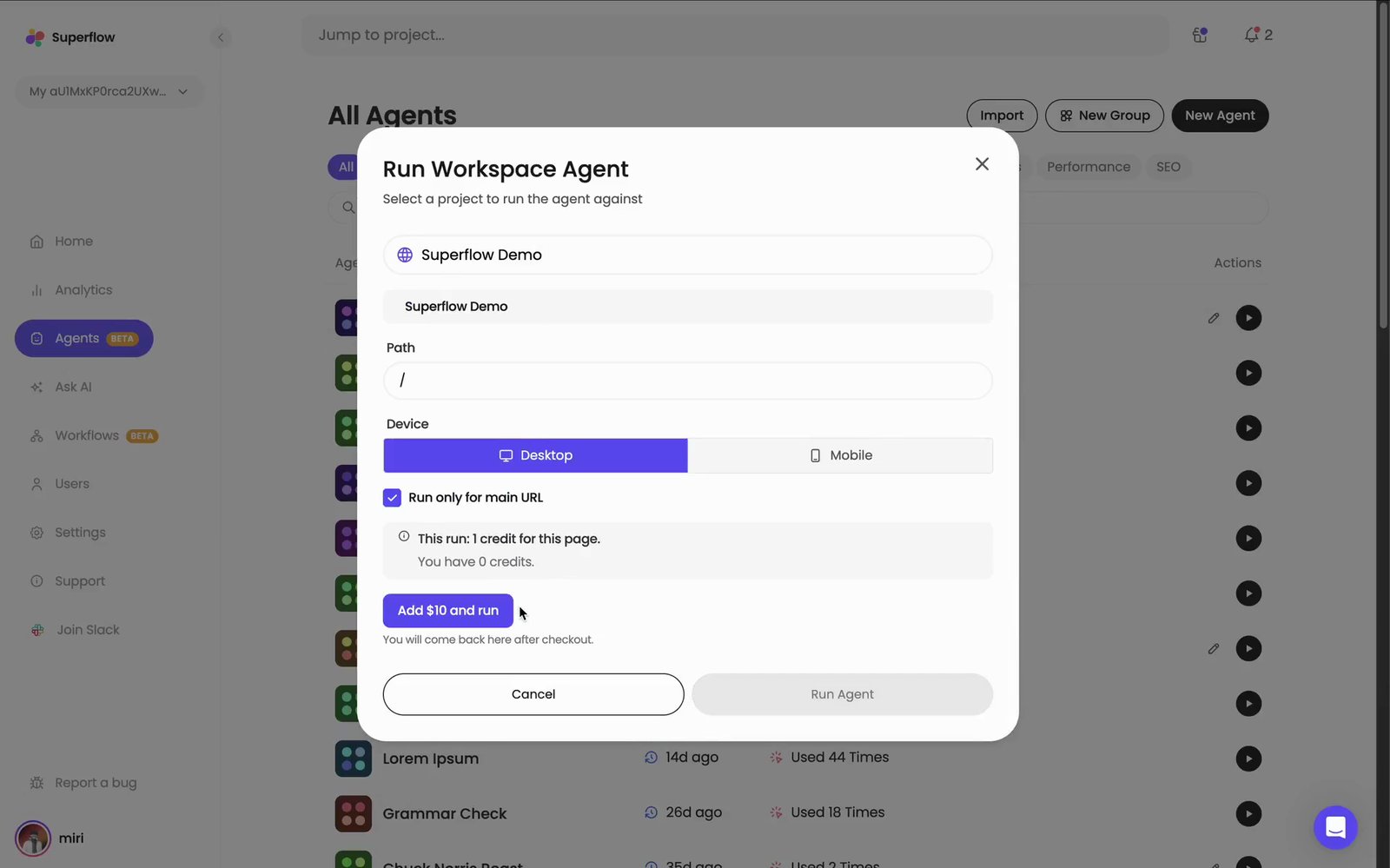 The cost of the run is shown above the buttons, along with your remaining balance. If the balance will not cover it, an **Add credit and run** button appears in place of **Run Agent** and brings you back here after checkout.
When the run finishes, the results panel opens on the right with the findings from that run, and keeps the history of every earlier one. See [How to Run an Agent from the Agents Tab](/docs/agents/how-to-run-an-agent-from-the-agents-tab) for how to read and compare them.
## Related topics
- [What Agents Are](/docs/agents/overview.md)
- [How to Run Agent Pre-Checks on a New Project](/docs/agents/how-to-run-agent-pre-checks-on-a-new-project.md)
- [How to Run an Agent from the Agents Tab](/docs/agents/how-to-run-an-agent-from-the-agents-tab.md)
- [How to Ask AI About Your Projects](/docs/agents/how-to-ask-ai-about-your-projects.md)
- [How to Integrate with Monday](/docs/Integrations/how-to-integrate-with-monday.md)
The cost of the run is shown above the buttons, along with your remaining balance. If the balance will not cover it, an **Add credit and run** button appears in place of **Run Agent** and brings you back here after checkout.
When the run finishes, the results panel opens on the right with the findings from that run, and keeps the history of every earlier one. See [How to Run an Agent from the Agents Tab](/docs/agents/how-to-run-an-agent-from-the-agents-tab) for how to read and compare them.
## Related topics
- [What Agents Are](/docs/agents/overview.md)
- [How to Run Agent Pre-Checks on a New Project](/docs/agents/how-to-run-agent-pre-checks-on-a-new-project.md)
- [How to Run an Agent from the Agents Tab](/docs/agents/how-to-run-an-agent-from-the-agents-tab.md)
- [How to Ask AI About Your Projects](/docs/agents/how-to-ask-ai-about-your-projects.md)
- [How to Integrate with Monday](/docs/Integrations/how-to-integrate-with-monday.md)