> ## Documentation Index
> Fetch the complete documentation index at: https://usesuperflow.ai/docs/llms.txt
> Use this file to discover all available pages before exploring further.
# How to Schedule a Recurring Report
> Learn how to turn an Ask AI answer into a report that runs on its own schedule and is delivered by email or Slack.
In this article, you will learn how to turn an **Ask AI** answer into a report that runs on its own, on a schedule you choose, and reaches the people who need it. If you have not asked a question yet, start with [How to Ask AI About Your Projects](/docs/agents/how-to-ask-ai-about-your-projects).
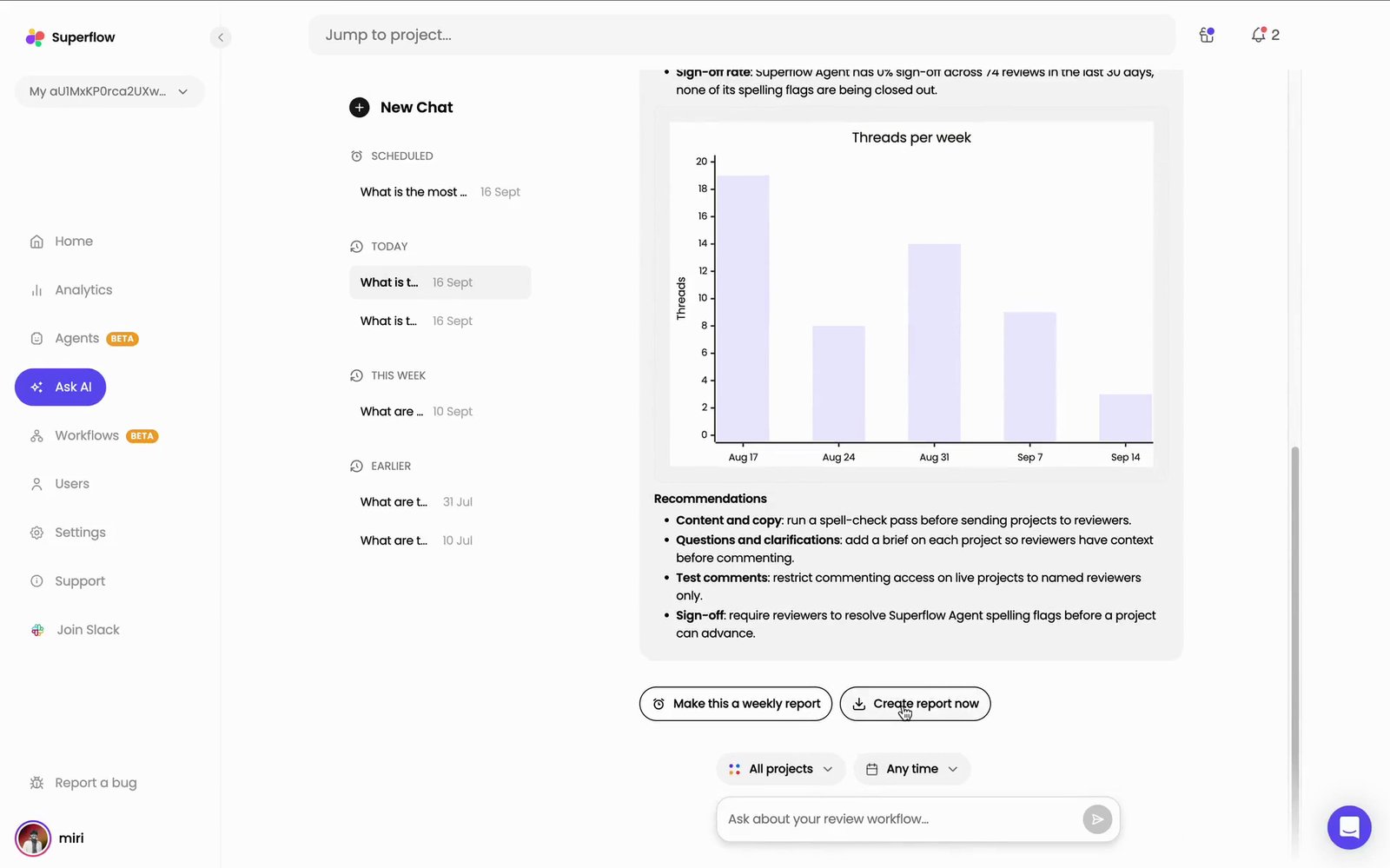
Superflow creates a scheduled report from the question you asked, and confirms when the first run will happen.
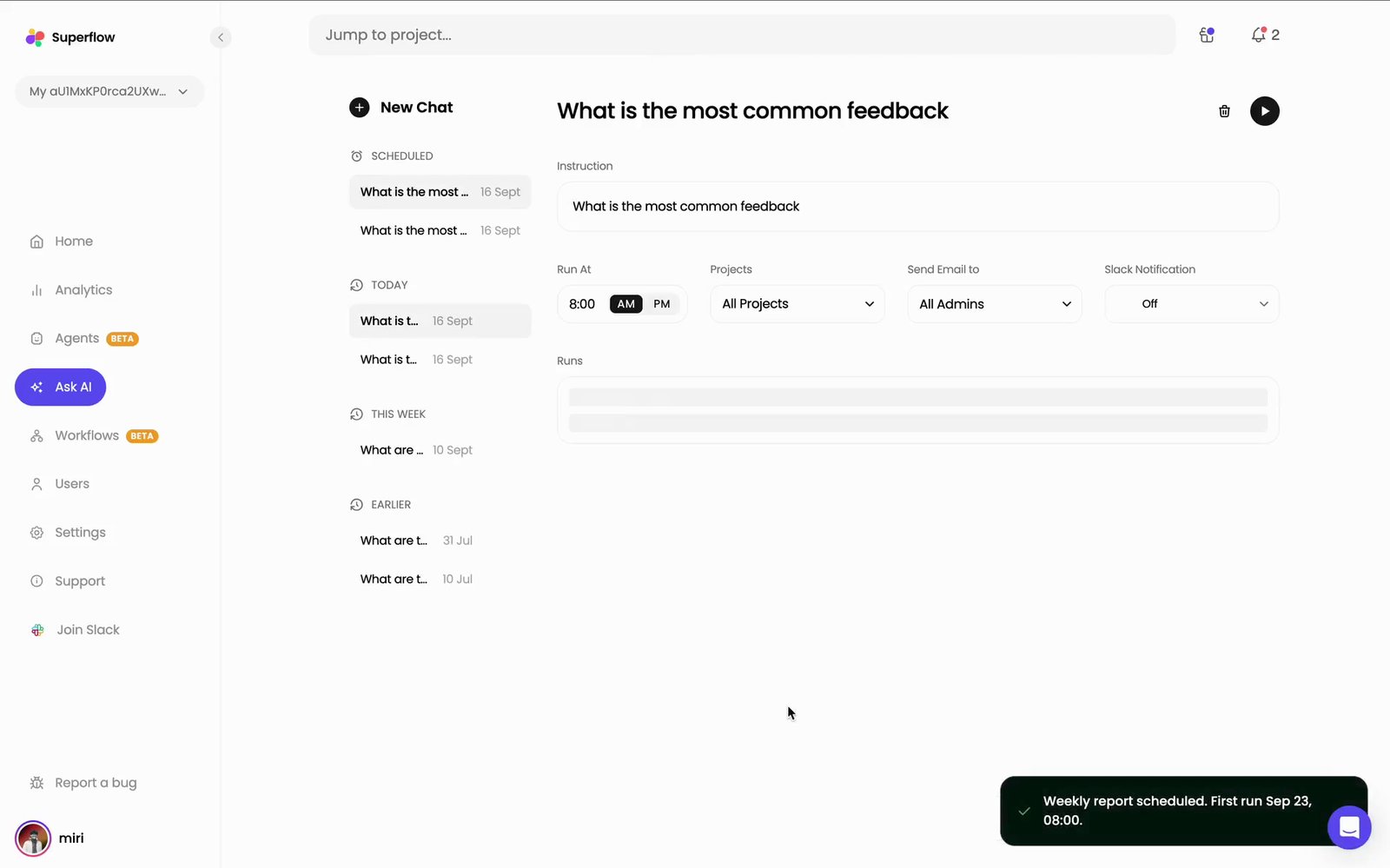
 Everything about the schedule is set from this one page.
| Setting | What it does |
| ---------------------- | -------------------------------------------------------------------------------------------- |
| **Instruction** | The question the report answers on every run. Edit it here to change what the report covers. |
| **Run At** | The time of day the report runs, with an **AM** / **PM** toggle. |
| **Projects** | Which projects the report covers. |
| **Send Email to** | Who receives the finished report by email. |
| **Slack Notification** | Sends the finished report into Slack. **Off** by default. |
Everything about the schedule is set from this one page.
| Setting | What it does |
| ---------------------- | -------------------------------------------------------------------------------------------- |
| **Instruction** | The question the report answers on every run. Edit it here to change what the report covers. |
| **Run At** | The time of day the report runs, with an **AM** / **PM** toggle. |
| **Projects** | Which projects the report covers. |
| **Send Email to** | Who receives the finished report by email. |
| **Slack Notification** | Sends the finished report into Slack. **Off** by default. |
 Sending to Slack requires the Slack integration to be connected first — see [How to Integrate with Slack](/docs/Integrations/how-to-integrate-with-slack).
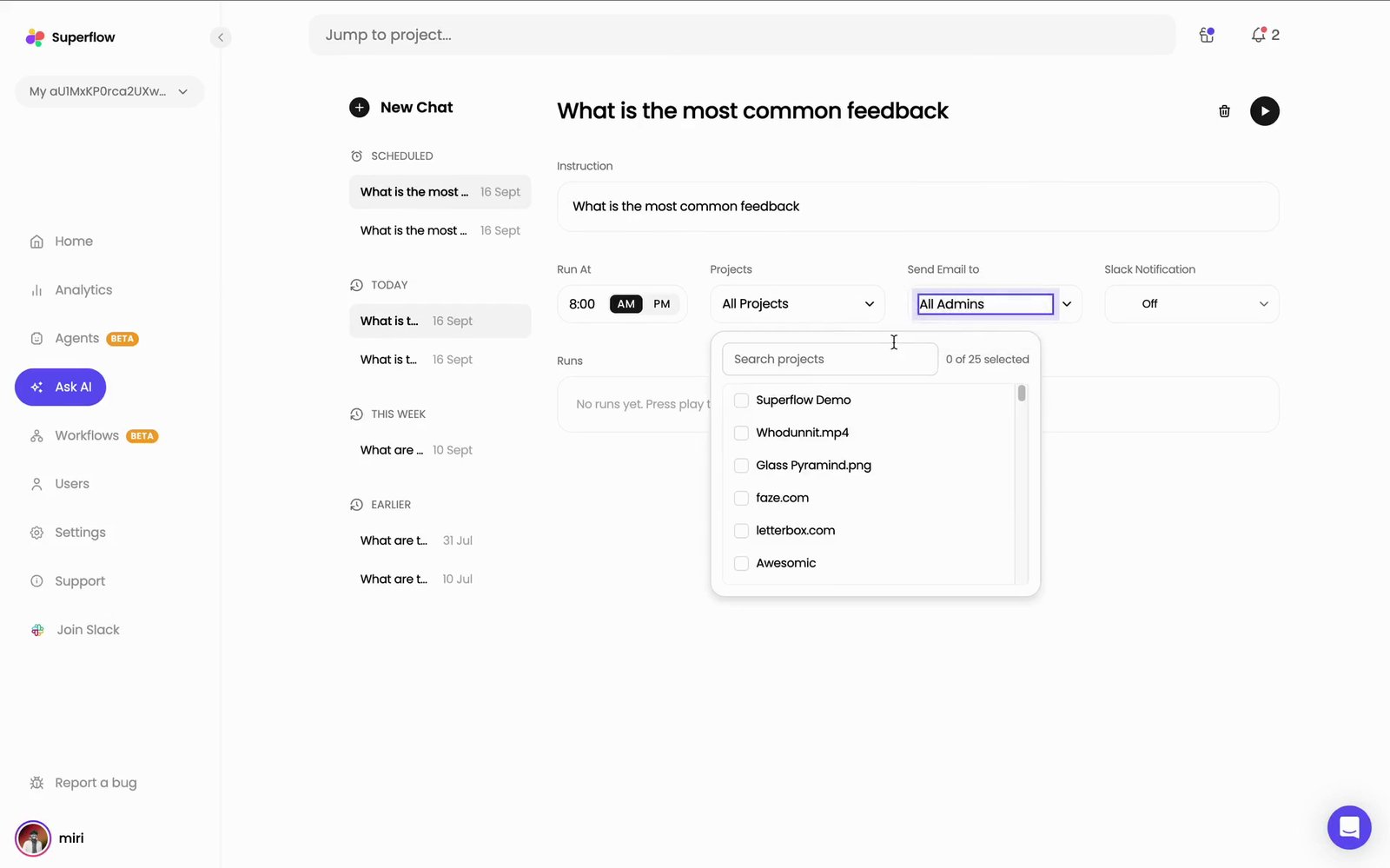
Search for a project by name, or tick the ones you want. The counter above the list shows how many you have selected, and the field keeps reading **All Projects** until you select individual ones.
Sending to Slack requires the Slack integration to be connected first — see [How to Integrate with Slack](/docs/Integrations/how-to-integrate-with-slack).
Search for a project by name, or tick the ones you want. The counter above the list shows how many you have selected, and the field keeps reading **All Projects** until you select individual ones.
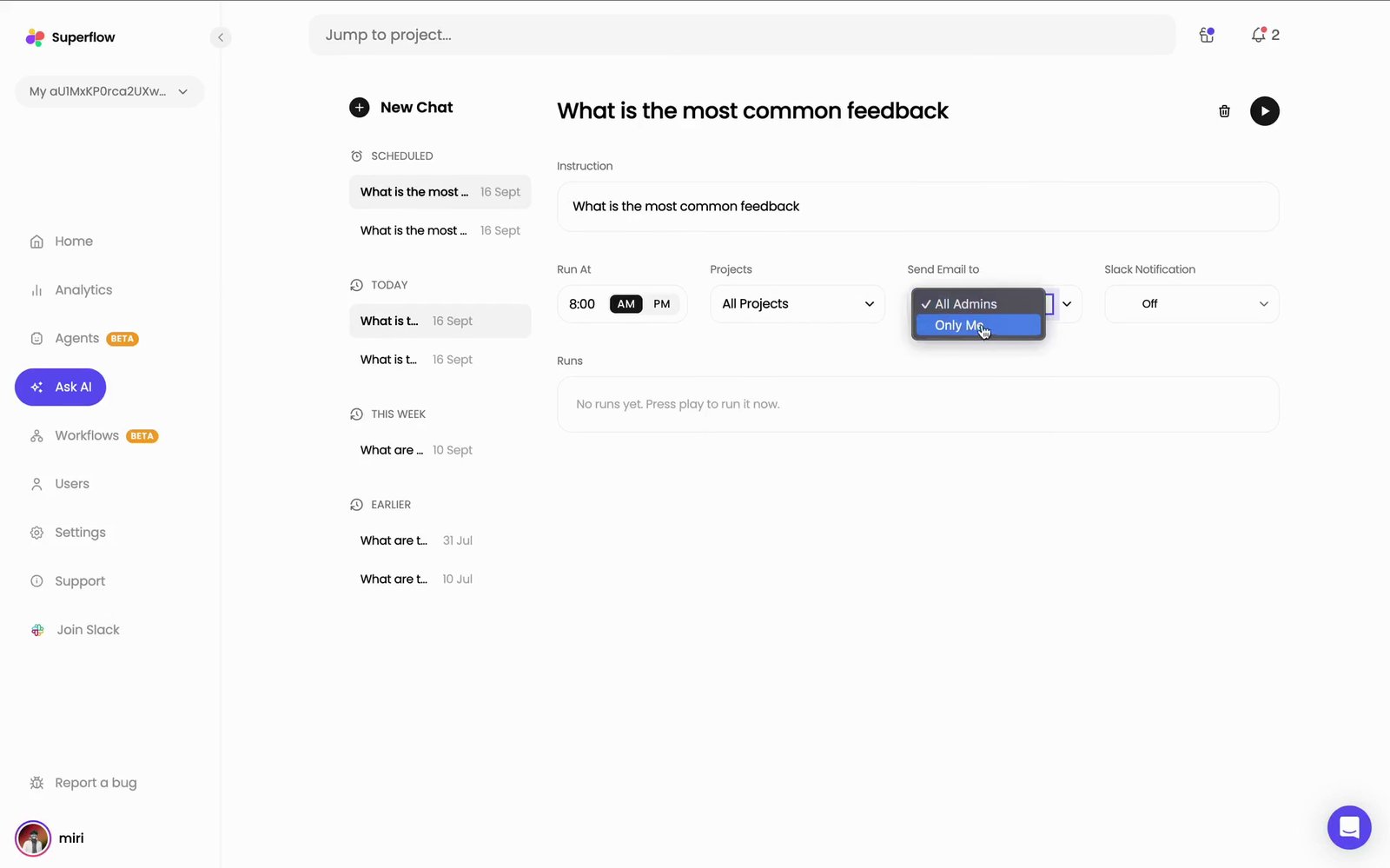
 Choose **All Admins** to send the report to every admin on the workspace, or **Only Me** to keep it to yourself.
 Every run is listed under **Runs** at the bottom of the page. A run takes a minute or two to generate; click it to open the finished report.
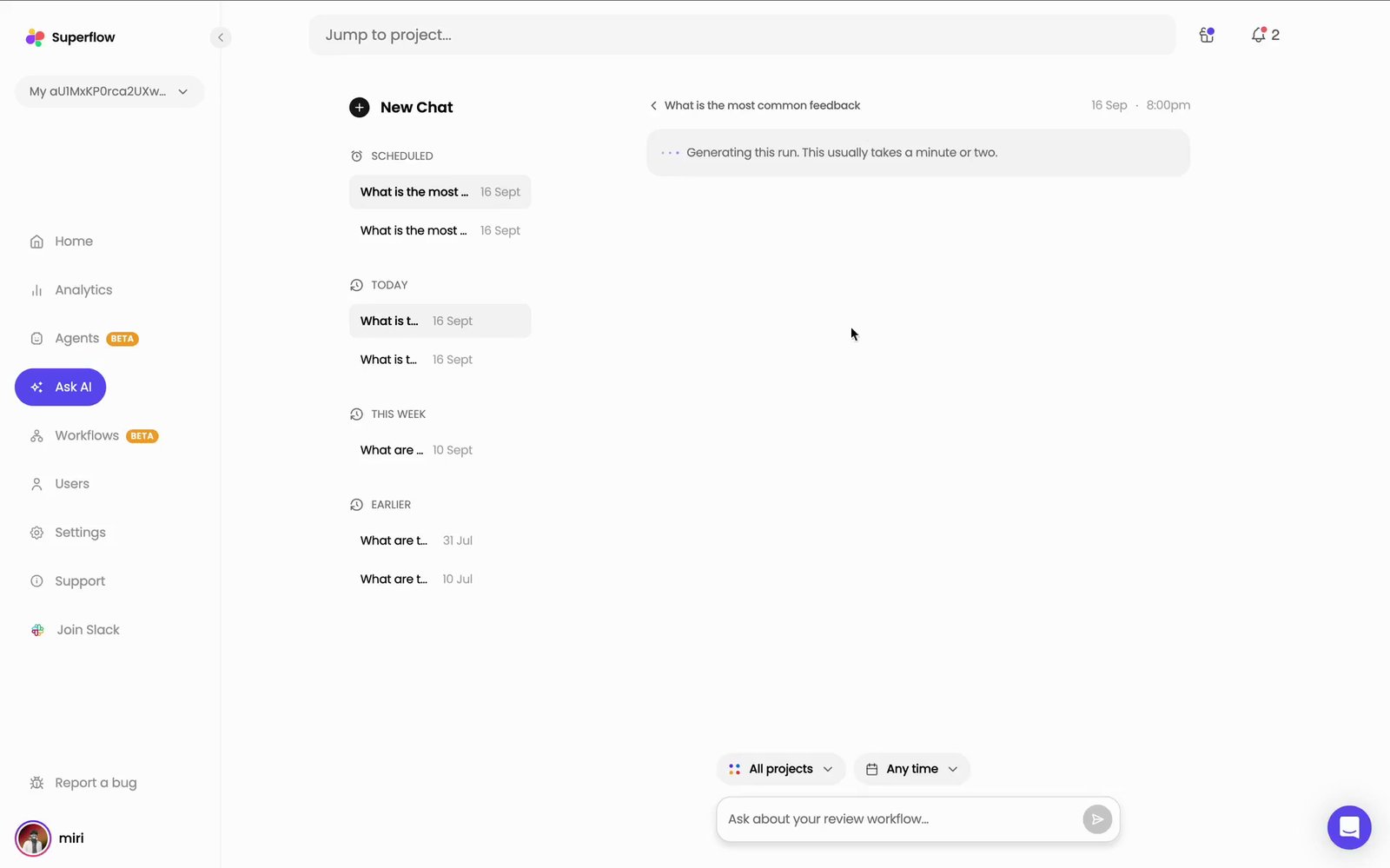 Scheduled reports appear under **Scheduled** at the top of the chat list on the left, so you can come back and change the schedule at any time. The **Trash** icon beside the Play button deletes the scheduled report.
## Related topics
- [What Agents Are](/docs/agents/overview.md)
- [How to Ask AI About Your Projects](/docs/agents/how-to-ask-ai-about-your-projects.md)
- [Changelog](/docs/changelog/changelog.md)
- [Single Sign On](/docs/site-access/single-sign-on.md)
- [Letting Superflow Read Your Protected Site](/docs/site-access/overview.md)
Scheduled reports appear under **Scheduled** at the top of the chat list on the left, so you can come back and change the schedule at any time. The **Trash** icon beside the Play button deletes the scheduled report.
## Related topics
- [What Agents Are](/docs/agents/overview.md)
- [How to Ask AI About Your Projects](/docs/agents/how-to-ask-ai-about-your-projects.md)
- [Changelog](/docs/changelog/changelog.md)
- [Single Sign On](/docs/site-access/single-sign-on.md)
- [Letting Superflow Read Your Protected Site](/docs/site-access/overview.md)