> ## Documentation Index
> Fetch the complete documentation index at: https://usesuperflow.ai/docs/llms.txt
> Use this file to discover all available pages before exploring further.
# How to Create and Run an Agent Group
> Learn how to bundle several agents into a group and run them together against a project.
In this article, you will learn how to bundle several agents into a group and run them together against a project. Groups are useful when you always run the same set of checks, such as a pre-launch checklist, so you can trigger them all at once instead of running each agent one at a time.
Agents are currently in **Beta**. Running a group charges credits for every agent in it, and the total is shown before you confirm the run.
## Creating the Group
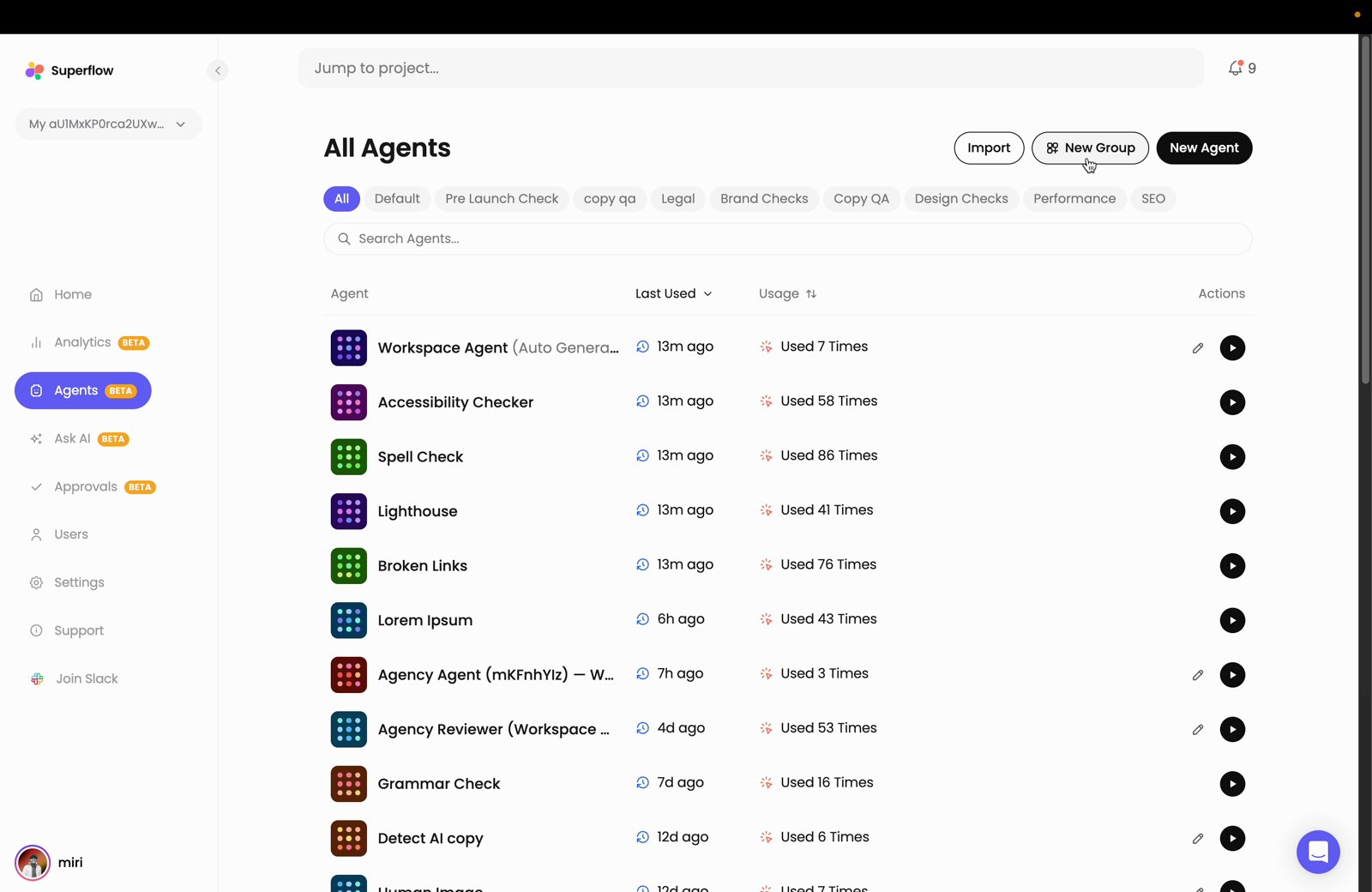
Click the **New Group** button on the upper right side.
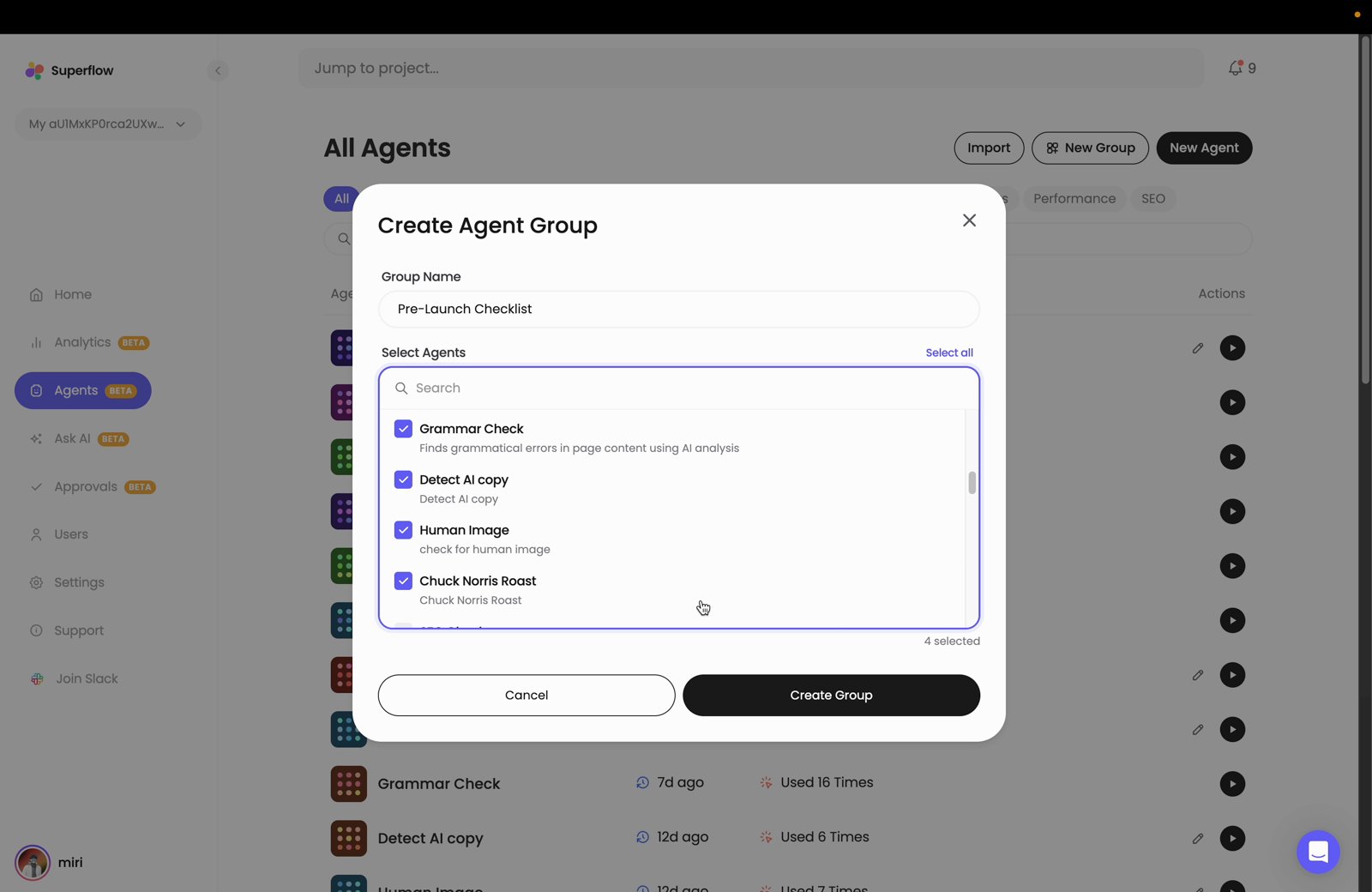
 Enter a **Group Name**, then tick the agents you want in the group. Use the **Search** field to find agents by name, or click **Select all** to add every agent. A counter below the list shows how many you have selected. Click **Create Group**.
 It is also added to the filter row beneath the page title, so you can jump back to it at any time.
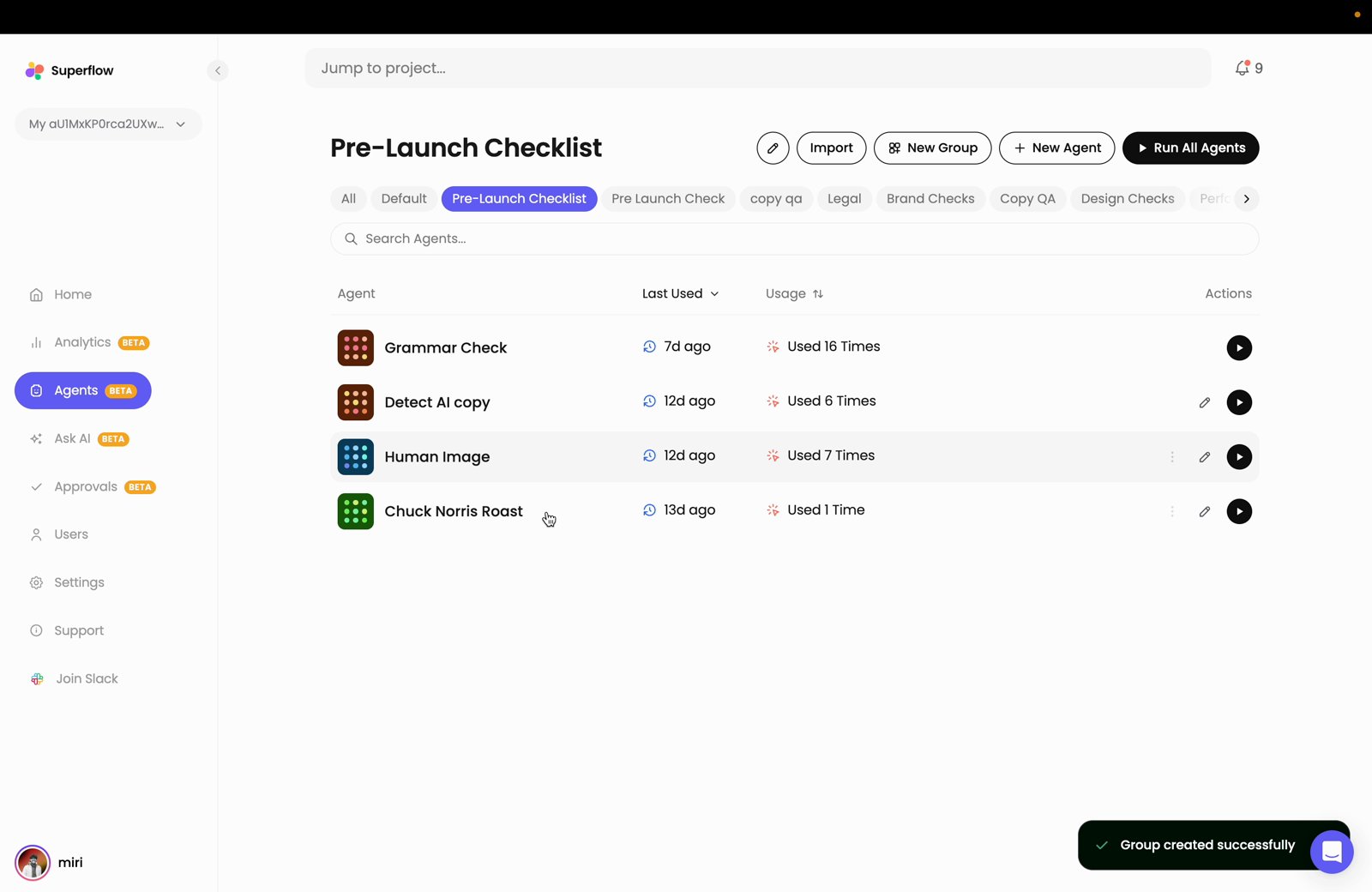 Use the pencil icon next to the group title to rename the group or change which agents belong to it.
## Running the Group
The run dialog will appear, titled with the number of agents in the group. Select the project to run against, then set the **Path**, choose **Desktop** or **Mobile**, and leave **Run only for main URL** checked to check just the main URL.
Use the pencil icon next to the group title to rename the group or change which agents belong to it.
## Running the Group
The run dialog will appear, titled with the number of agents in the group. Select the project to run against, then set the **Path**, choose **Desktop** or **Mobile**, and leave **Run only for main URL** checked to check just the main URL.
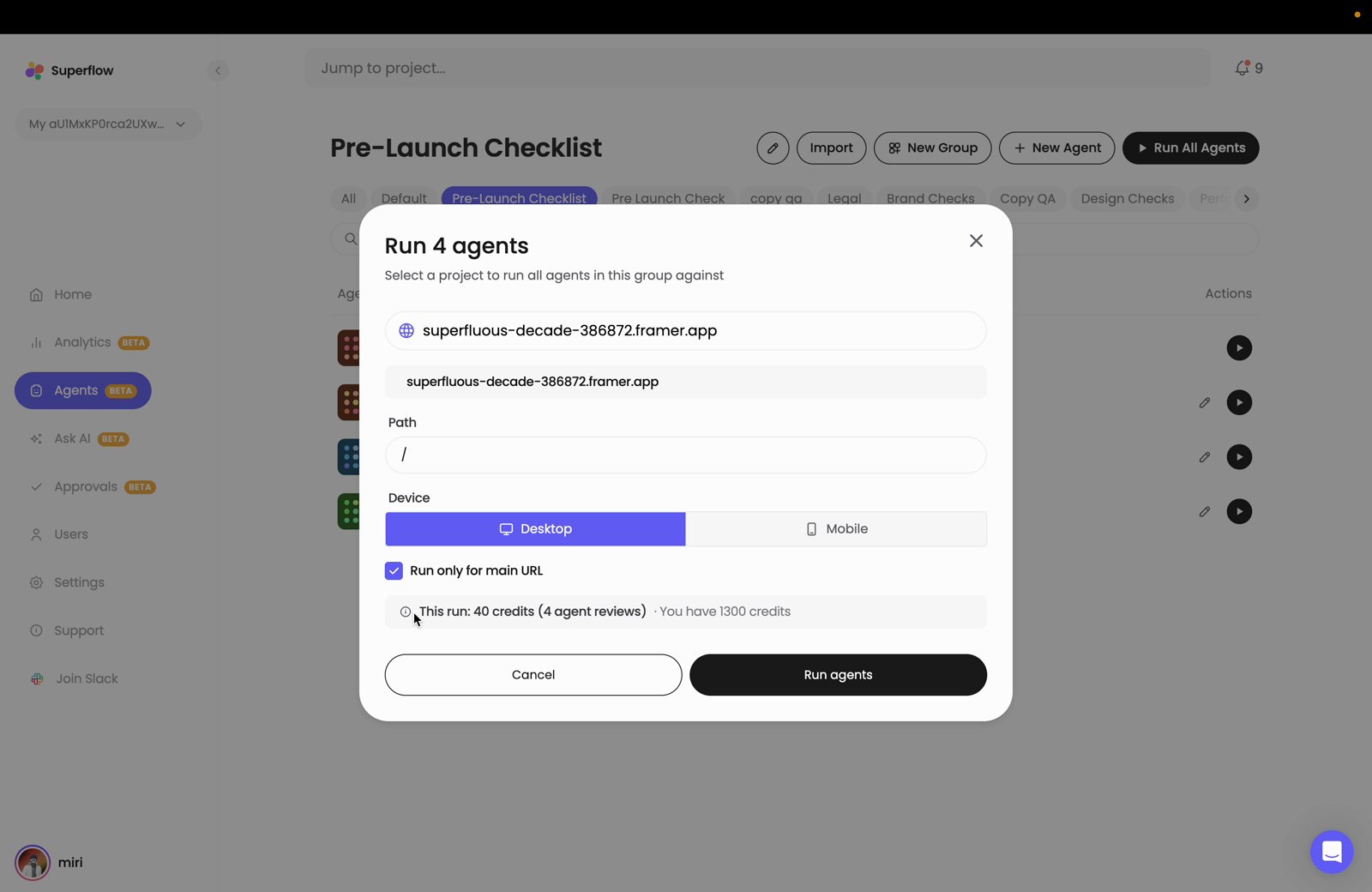 The total cost is shown above the buttons along with your remaining balance. Each agent in the group counts as one review, so a group of four costs 40 credits. Click **Run agents** to start.
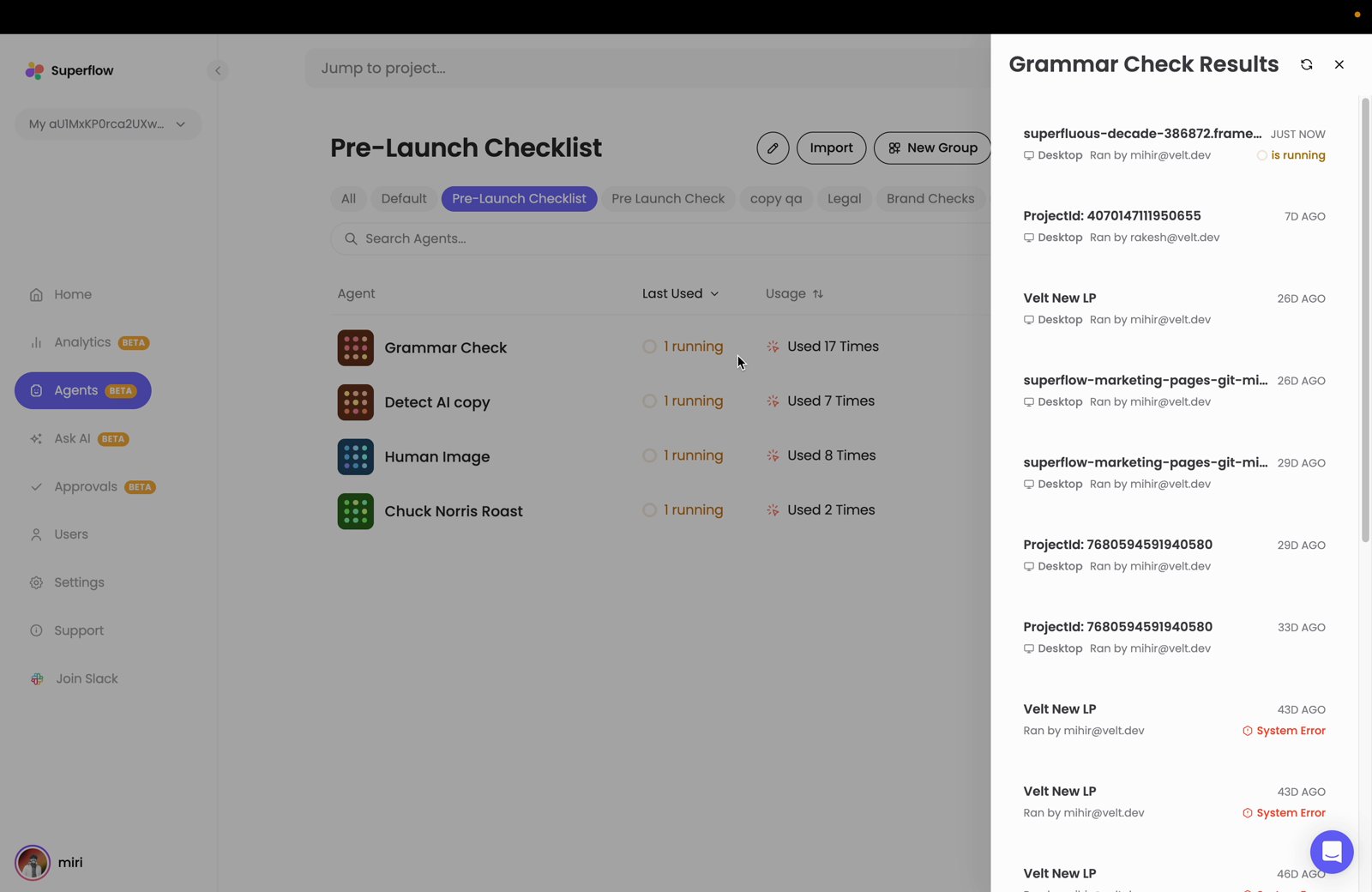
Click an agent's name to open its results panel on the right and follow that agent's progress and past runs.
The total cost is shown above the buttons along with your remaining balance. Each agent in the group counts as one review, so a group of four costs 40 credits. Click **Run agents** to start.
Click an agent's name to open its results panel on the right and follow that agent's progress and past runs.
 ## Next Steps
Build a new agent so you can add it to a group.
Run a single agent instead of a whole group.
## Related topics
- [How to Run an Agent from the Agents Tab](/docs/agents/how-to-run-an-agent-from-the-agents-tab.md)
- [How to Create Agents from a Checklist](/docs/agents/how-to-create-agents-from-a-checklist.md)
- [How to Create a New Agent](/docs/agents/how-to-create-a-new-agent.md)
- [How to Run Agent Pre-Checks on a New Project](/docs/agents/how-to-run-agent-pre-checks-on-a-new-project.md)
- [What Agents Are](/docs/agents/overview.md)
## Next Steps
Build a new agent so you can add it to a group.
Run a single agent instead of a whole group.
## Related topics
- [How to Run an Agent from the Agents Tab](/docs/agents/how-to-run-an-agent-from-the-agents-tab.md)
- [How to Create Agents from a Checklist](/docs/agents/how-to-create-agents-from-a-checklist.md)
- [How to Create a New Agent](/docs/agents/how-to-create-a-new-agent.md)
- [How to Run Agent Pre-Checks on a New Project](/docs/agents/how-to-run-agent-pre-checks-on-a-new-project.md)
- [What Agents Are](/docs/agents/overview.md)