> ## Documentation Index
> Fetch the complete documentation index at: https://usesuperflow.ai/docs/llms.txt
> Use this file to discover all available pages before exploring further.
# How to Ask AI About Your Projects
> Learn how to ask one plain-English question across every project in your workspace and turn the answer into a report you can download.
In this article, you will learn how to use **Ask AI** to ask one plain-English question across every project in your workspace, read the answer it returns, and turn that answer into a report you can download and hand off.
Ask AI answers from the review threads and comments that already exist in your workspace. Every answer opens with a **Scope** line naming exactly what it read, so you can always see what the numbers are based on.
Type your question into the box in the middle of the page and press **Enter**, or click one of the suggested questions underneath it.
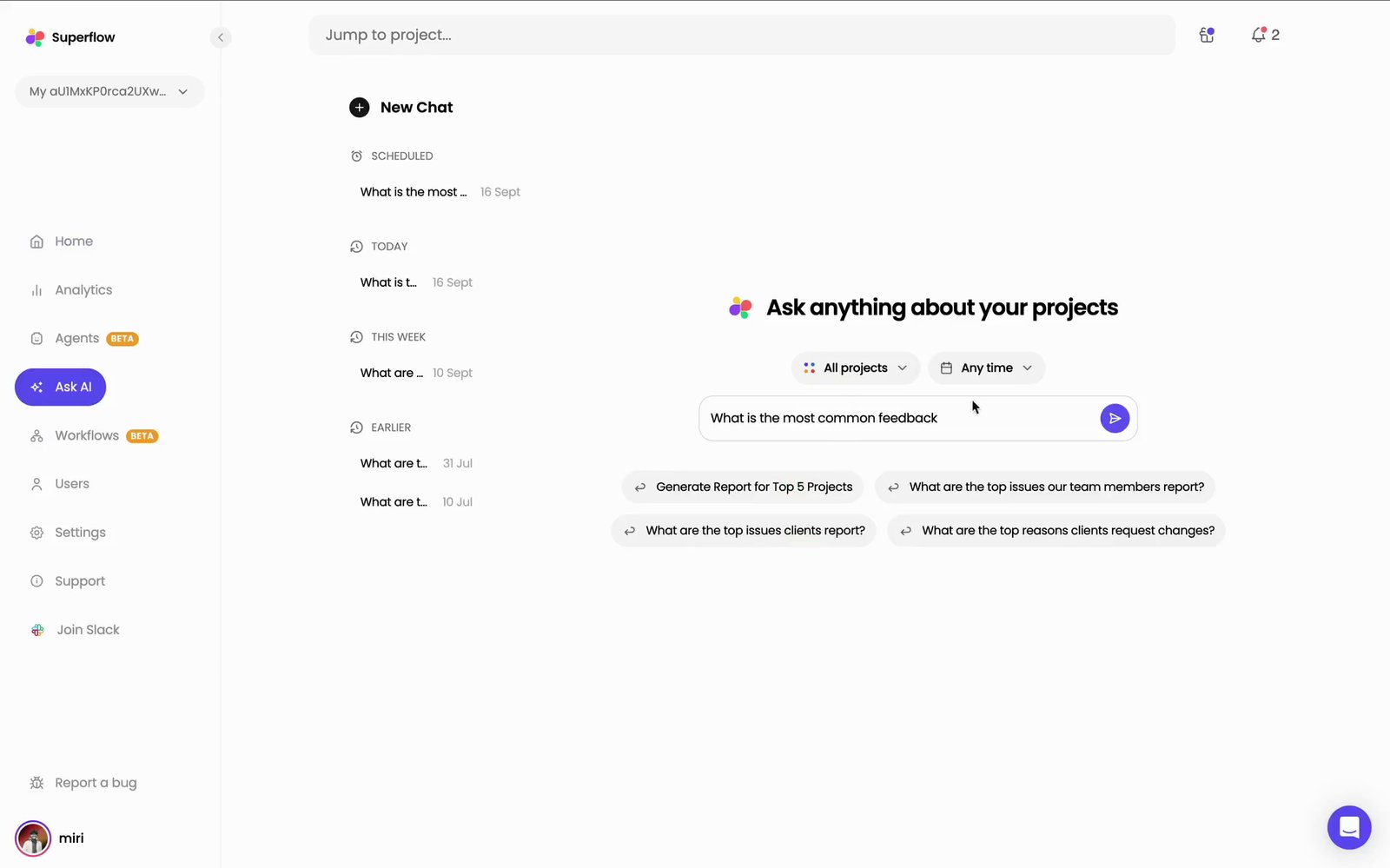 Two filters sit above the box and decide what the question is asked against:
| Filter | What it does |
| ---------------- | --------------------------------------------------------------------------------------------------------------- |
| **All projects** | Limits the question to the projects you choose. Leave it as **All projects** to ask across the whole workspace. |
| **Any time** | Limits the question to a date range. |
Your earlier chats are listed on the left, grouped into **Scheduled**, **Today**, **This Week** and **Earlier**. Click **New Chat** to start a fresh one.
The answer opens with a **Scope** line — the number of projects, review threads and comments it read, and the dates they cover — then breaks the feedback into two tables.
| Table | What it shows |
| -------------- | --------------------------------------------------------------------------------------------------------------------------------------- |
| **Top issues** | Each recurring issue, how many threads it accounts for, its share of the total, and an example of what it looks like in a real comment. |
| **Projects** | Each project in scope, with its thread count, comment count, share of the total, and its own top issue. |
Two filters sit above the box and decide what the question is asked against:
| Filter | What it does |
| ---------------- | --------------------------------------------------------------------------------------------------------------- |
| **All projects** | Limits the question to the projects you choose. Leave it as **All projects** to ask across the whole workspace. |
| **Any time** | Limits the question to a date range. |
Your earlier chats are listed on the left, grouped into **Scheduled**, **Today**, **This Week** and **Earlier**. Click **New Chat** to start a fresh one.
The answer opens with a **Scope** line — the number of projects, review threads and comments it read, and the dates they cover — then breaks the feedback into two tables.
| Table | What it shows |
| -------------- | --------------------------------------------------------------------------------------------------------------------------------------- |
| **Top issues** | Each recurring issue, how many threads it accounts for, its share of the total, and an example of what it looks like in a real comment. |
| **Projects** | Each project in scope, with its thread count, comment count, share of the total, and its own top issue. |
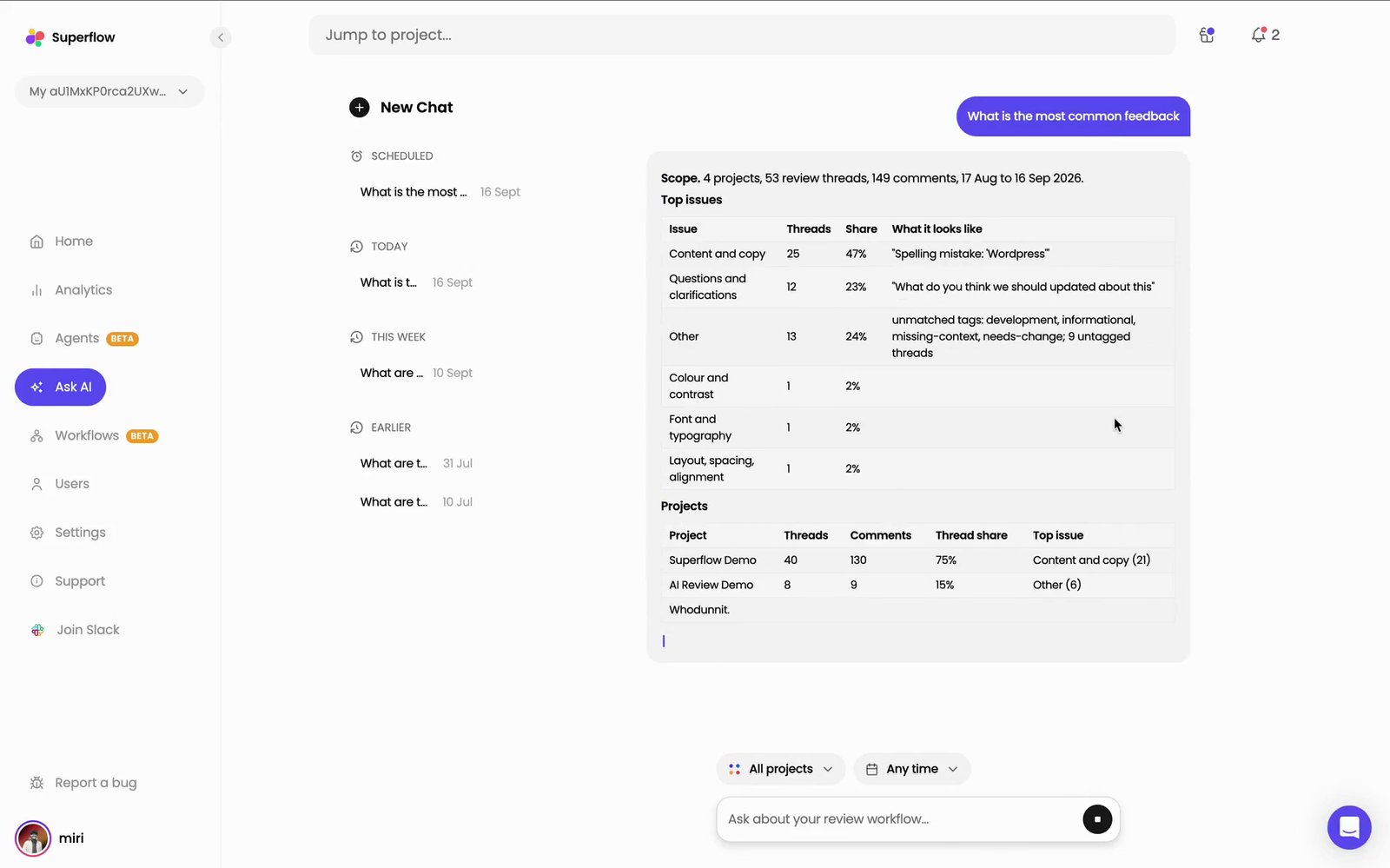 Below the tables the answer continues with **Key trends**, a **Threads per week** chart, and **Recommendations** — each one a specific change to make, rather than a restatement of the numbers above it.
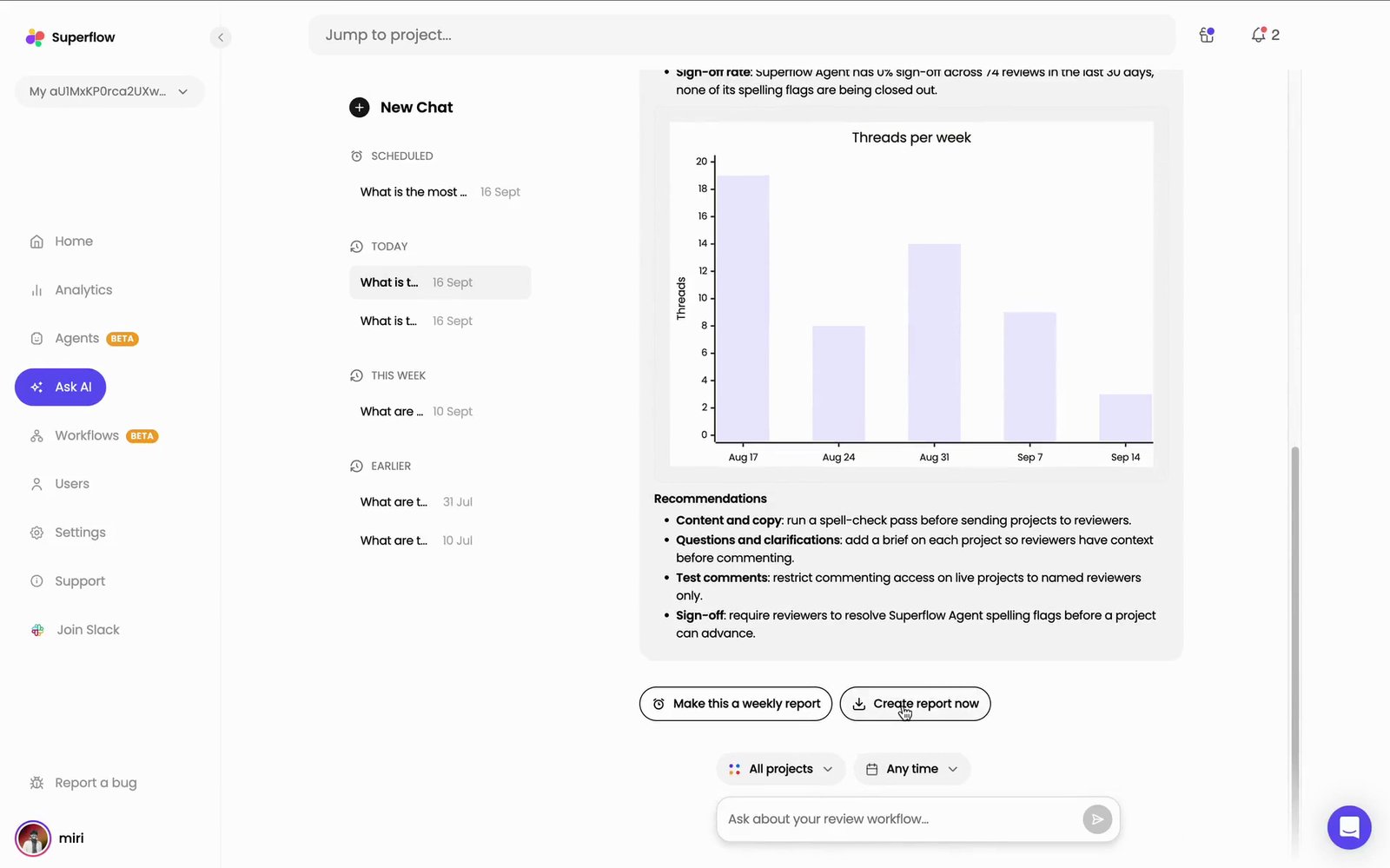 Two buttons sit at the end of every answer. **Create report now** builds the report straight away. **Make this a weekly report** schedules it instead, so you do not have to ask again.
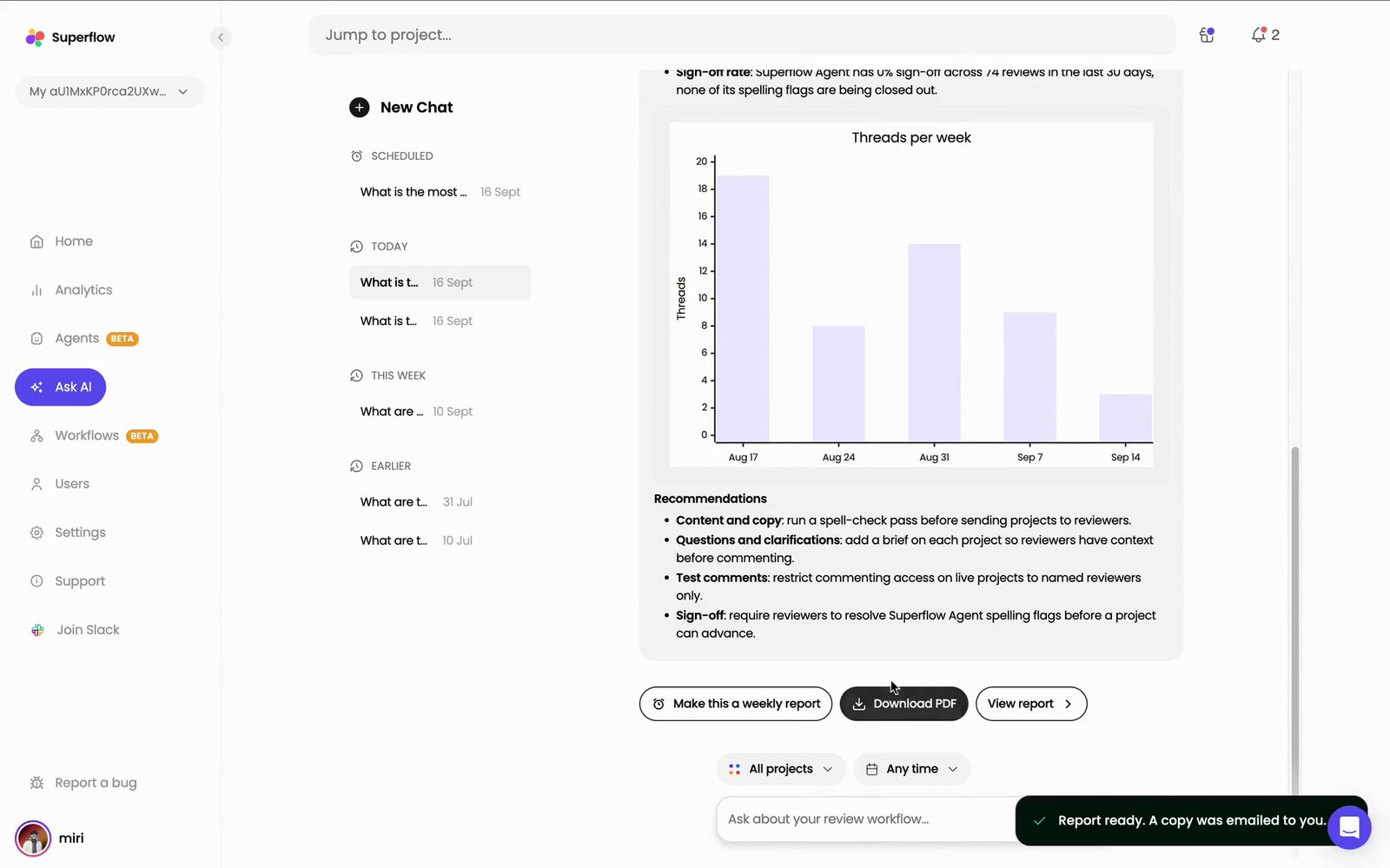
Once the report is ready the buttons change to **Download PDF** and **View report**, and a copy is emailed to you.
Two buttons sit at the end of every answer. **Create report now** builds the report straight away. **Make this a weekly report** schedules it instead, so you do not have to ask again.
Once the report is ready the buttons change to **Download PDF** and **View report**, and a copy is emailed to you.
 To have the same report arrive on its own every week, without asking the question again, see [How to Schedule a Recurring Report](/docs/agents/how-to-schedule-a-recurring-report).
## Related topics
- [What Agents Are](/docs/agents/overview.md)
- [How to Schedule a Recurring Report](/docs/agents/how-to-schedule-a-recurring-report.md)
- [Superflow MCP](/docs/mcp/overview.md)
- [Letting Superflow Read Your Protected Site](/docs/site-access/overview.md)
- [How to Create a New Agent](/docs/agents/how-to-create-a-new-agent.md)
To have the same report arrive on its own every week, without asking the question again, see [How to Schedule a Recurring Report](/docs/agents/how-to-schedule-a-recurring-report).
## Related topics
- [What Agents Are](/docs/agents/overview.md)
- [How to Schedule a Recurring Report](/docs/agents/how-to-schedule-a-recurring-report.md)
- [Superflow MCP](/docs/mcp/overview.md)
- [Letting Superflow Read Your Protected Site](/docs/site-access/overview.md)
- [How to Create a New Agent](/docs/agents/how-to-create-a-new-agent.md)